# Manage Admissions
URL: https://guide.whitepenguin.co/docs/admissions/manage-admissions/
> View and manage all admissions for your school in one place.
## Overview [#overview]
The **Admissions** tab is where every offered admission lives. Once you click **Send Offer** on a lead, that family moves out of **Leads & Requests** and into this tab, where the admin tracks the rest of the journey — from offer sent, to payment, to active child profile.
Use this tab to:
* See every family that has received an admission offer in one place.
* View the **Admission Acceptance Letter** and **Invoice** that were sent to the parent.
* **Resend** the offer email if needed.
* **Withdraw** an offer that should no longer be honored.
No rows are added here manually — they appear automatically when the admin sends an offer from **Leads & Requests → Send Offer**.
## How to Access Admissions [#how-to-access-admissions]
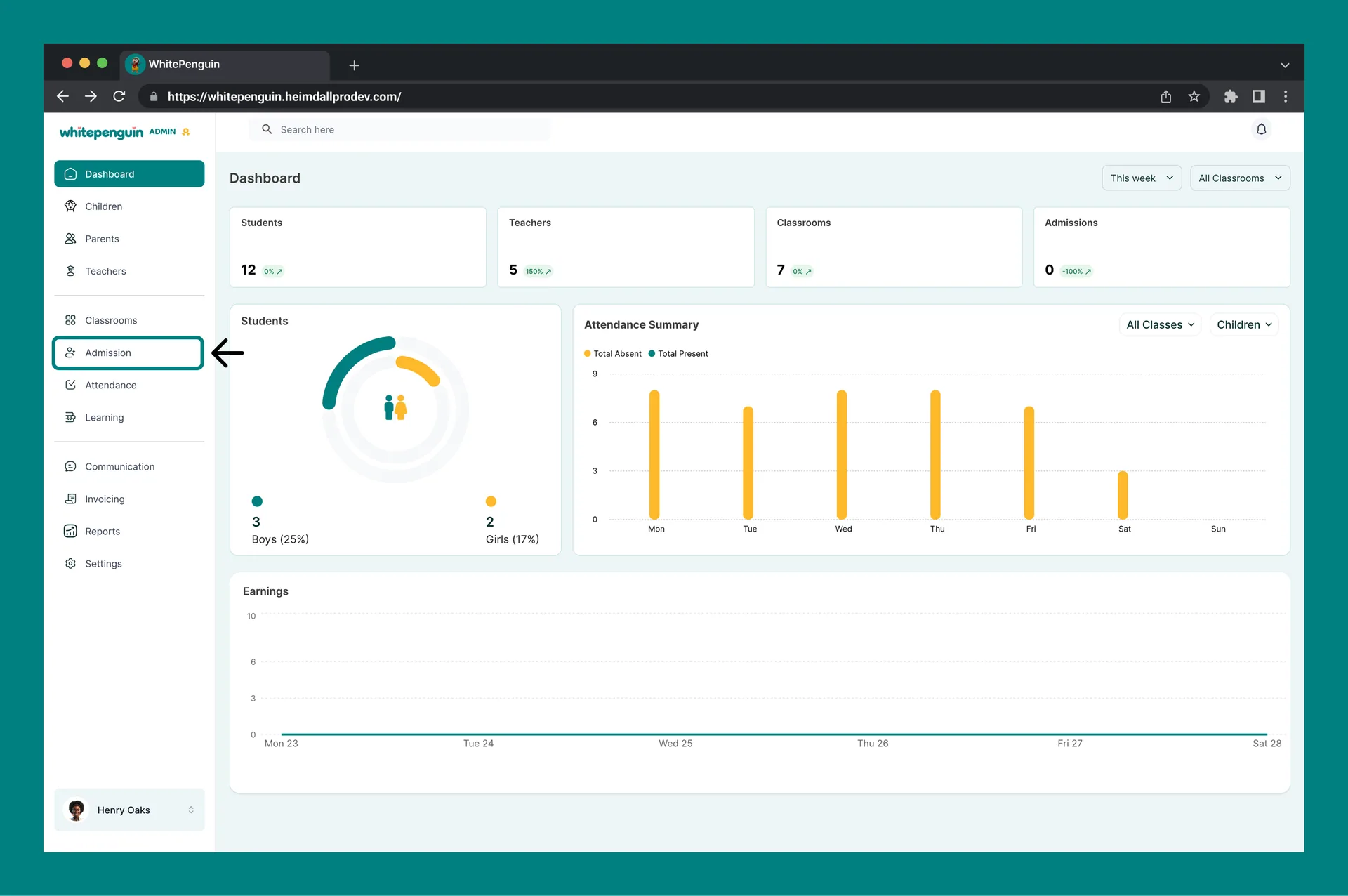
1. Click **Admission** in the **left sidebar**.
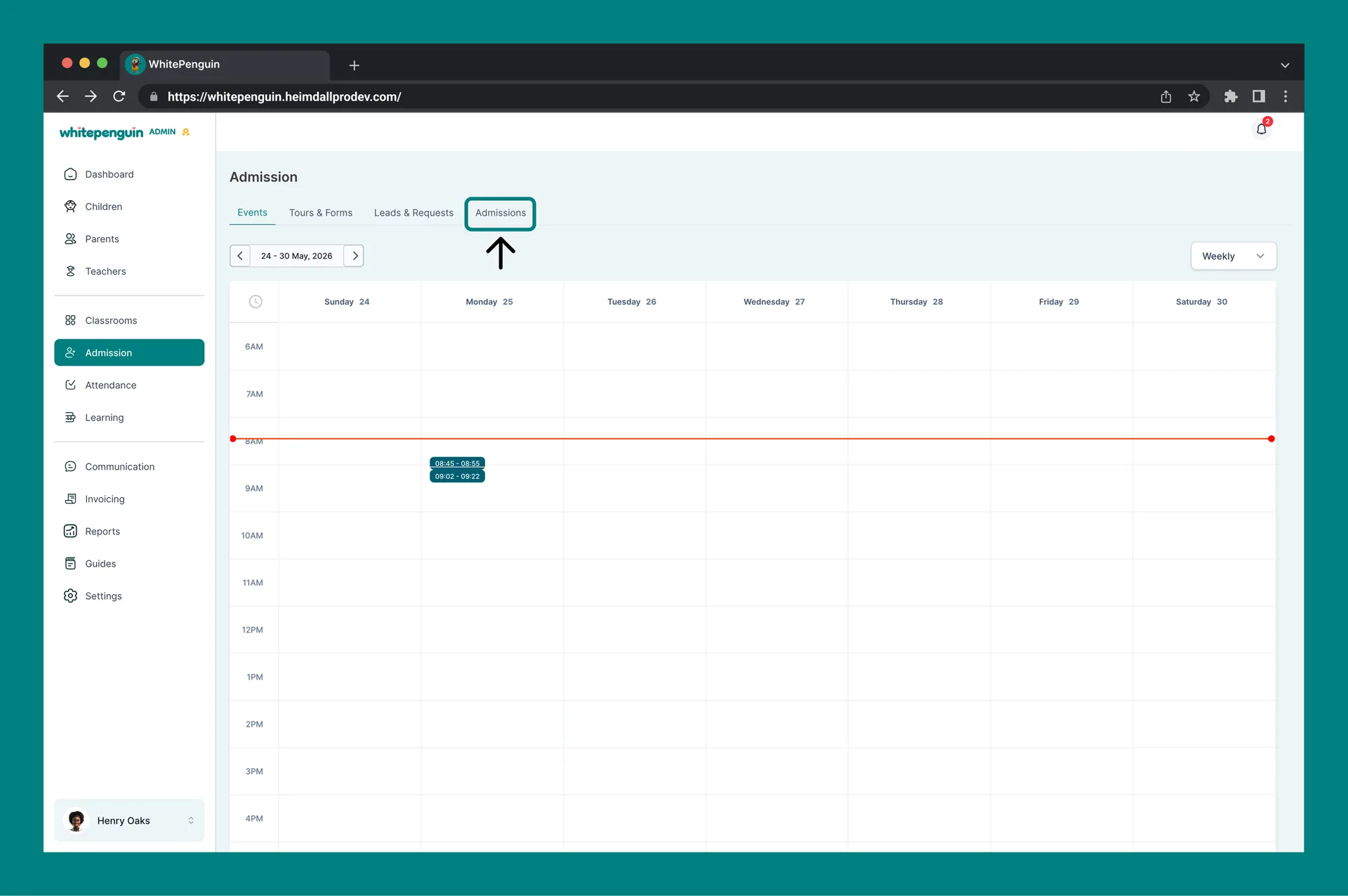
2. Select the **Admissions** tab at the top of the Admission page.
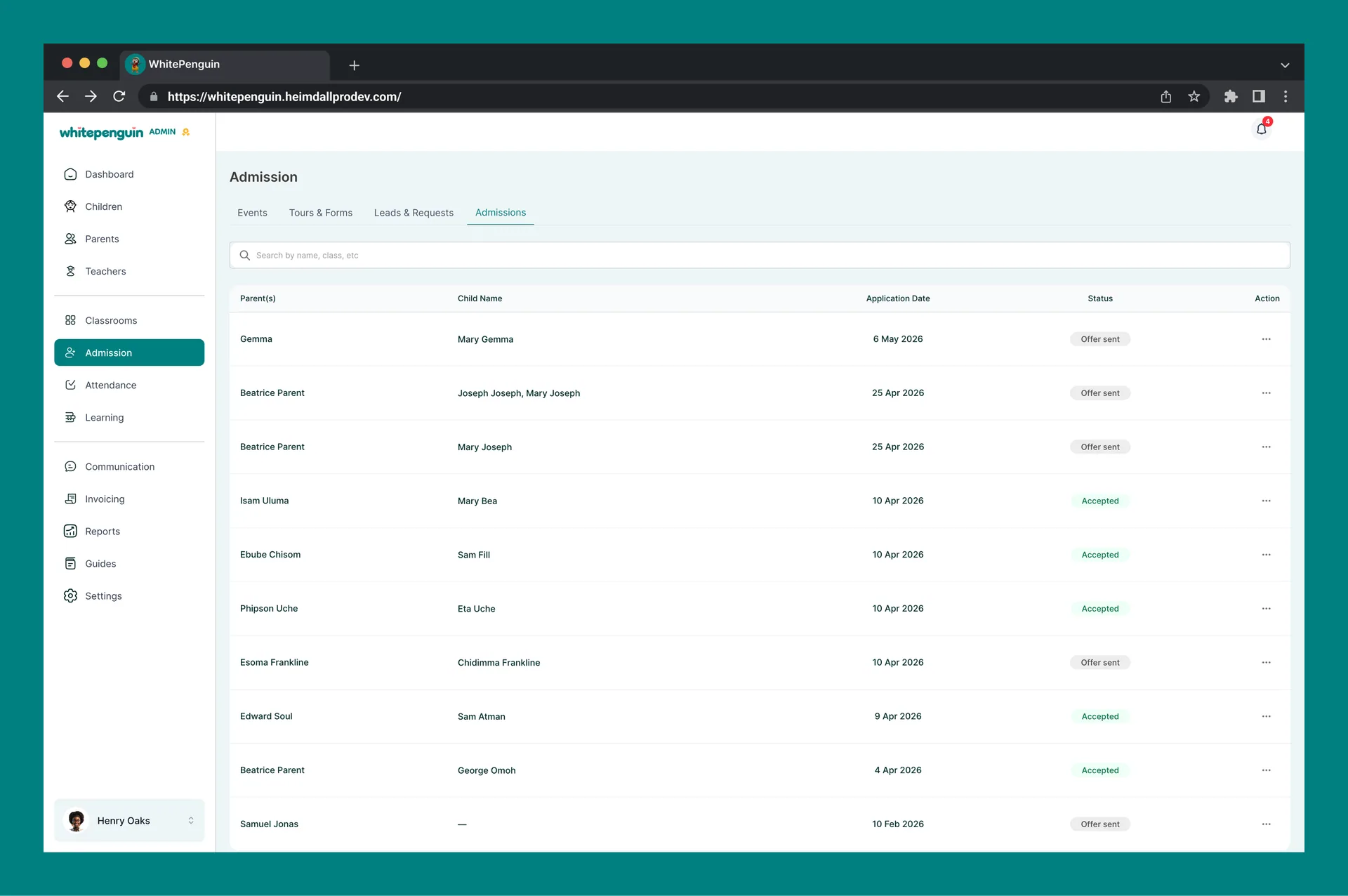
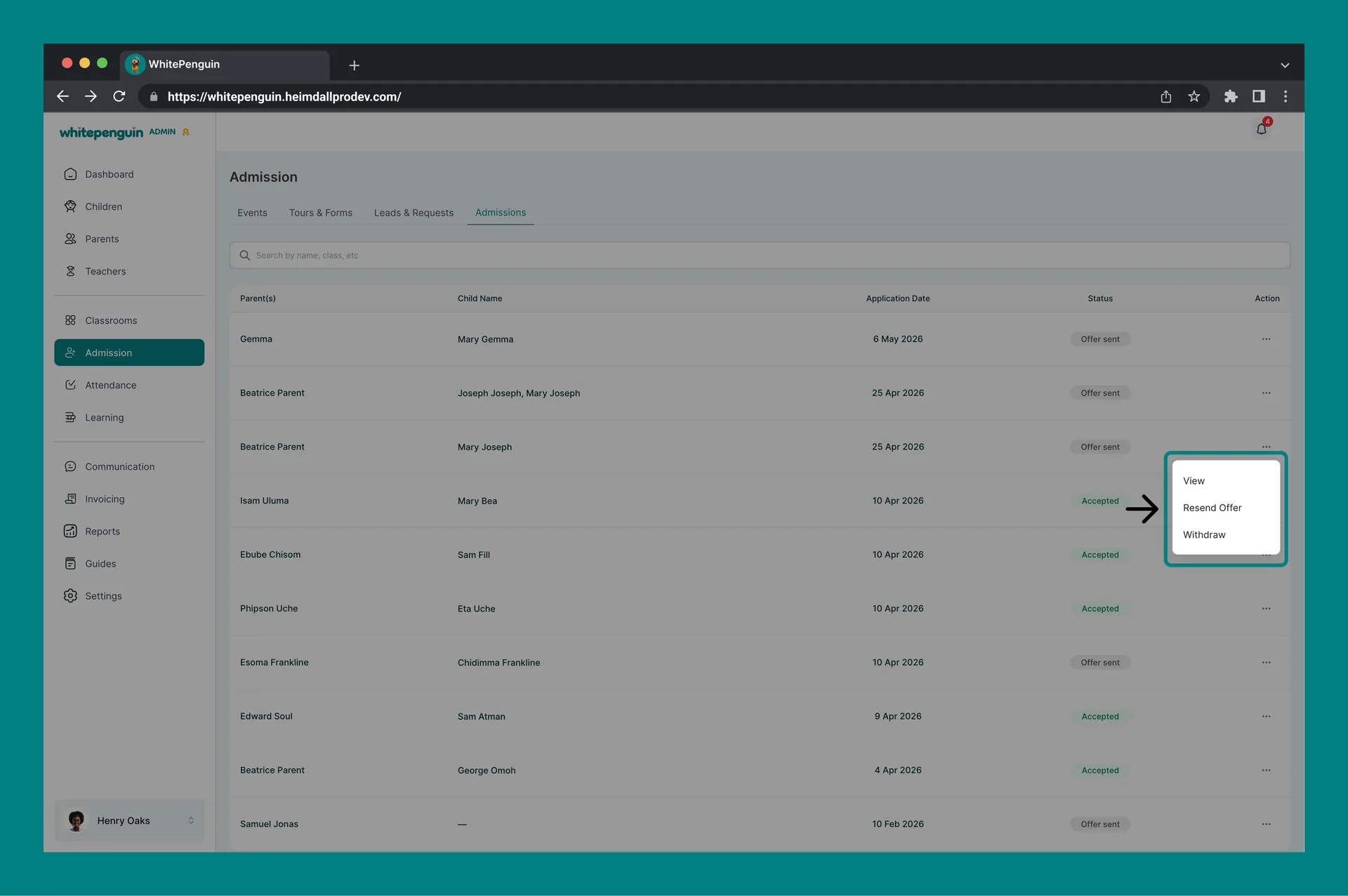
3. You will see a table with every offered admission and its current status.
4. Use the **search bar** at the top to filter by **name**, **class**, or other keywords.
## Admissions Table — What You See [#admissions-table--what-you-see]
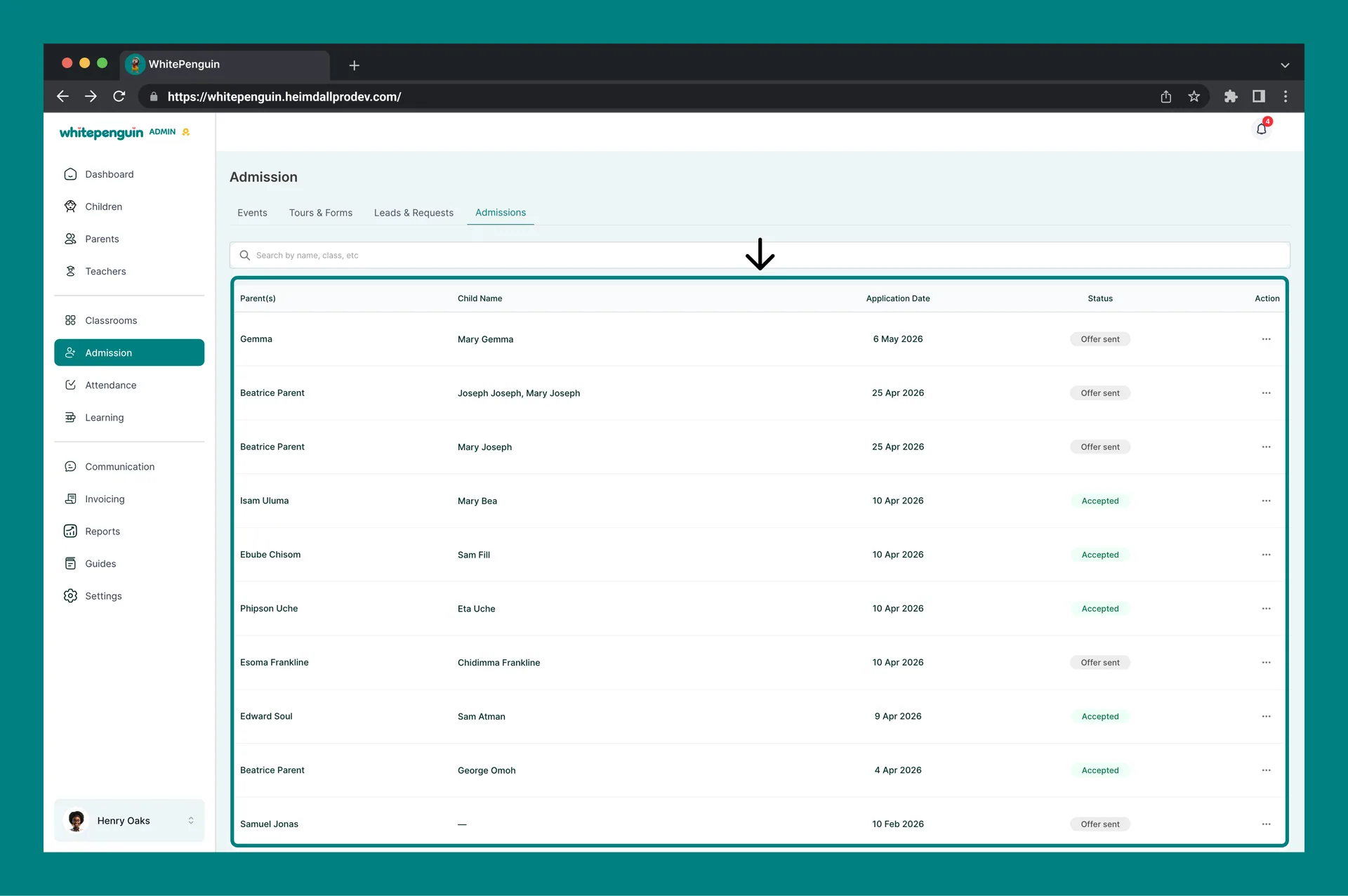
Each row represents one admission offer and includes the following columns:
| Column | What It Shows |
| -------------------- | ------------------------------------------------------------------------------------------------- |
| **Parent(s)** | The parent's name on the offer. |
| **Child Name** | The child being admitted (multiple children appear as separate rows or grouped under the parent). |
| **Application Date** | The date the offer was sent. |
| **Status** | The current stage of the admission (e.g. *Offer sent*, *Paid*, *Withdrawn*). |
| **Action** | A three-dot menu with status-specific actions. |
Use **Rows per page** (bottom left) and the pagination control (bottom right) to navigate when you have many admissions.
## Admission Statuses [#admission-statuses]
The status reflects where the family is between the offer and a fully active enrolment:
| Status | What It Means |
| ---------- | ---------------------------------------------------------------------------------- |
| Offer sent | The admission offer and invoice were sent to the parent. Awaiting payment. |
| Paid | The admission invoice has been paid. The child profile is automatically activated. |
| Withdrawn | The offer was withdrawn by the admin and is no longer valid. |
## Actions on an Admission [#actions-on-an-admission]
Click the three-dot **Action** menu on any row to open the actions available for that admission.
* **View** — open the admission details, including the parent and child information, the Admission Acceptance Letter, and the linked invoice.
* **Resend Offer** — re-send the offer email to the parent (useful if they didn't receive or lost the original email).
* **Withdraw** — withdraw the admission offer; the offer becomes invalid and the parent is notified.
**Withdraw** is a serious action. The offer cannot be honored after withdrawal, and the parent will receive a notification. Use it only when the admission should genuinely be cancelled.
## The Admission Acceptance Letter [#the-admission-acceptance-letter]
When an offer is sent, WhitePenguin automatically generates a **Provisional Offer of Admission** PDF for the parent. It includes:
* The school logo and name.
* The date the offer was issued.
* The parent's name and the child's name.
* The classroom the child has been offered (e.g. *Classroom 1*).
* The next steps the parent should take to secure placement:
* Review the attached fee structure and initial invoice.
* Ensure payment of the registration and tuition fees on or before the due date.
* Submit any outstanding enrolment documentation via the parent portal.
* A school stamp / *APPROVED* mark and the school's contact details.
The content of the letter is generated from your **School Profile** (logo, name, address, contact details) and the offer you sent. Keep your School Profile up to date so letters always reflect the right information.
## The Admission Invoice [#the-admission-invoice]
Alongside the acceptance letter, a matching **Invoice** PDF is generated and sent to the parent. It includes:
* An **Invoice number** (e.g. *INV-000577*) and the **ADMISSION** label.
* The school's billing information and the parent's billing info.
* **Date** and **Due** date for payment.
* **Child(ren)** the invoice covers.
* A line-item breakdown using the items you entered in **Send Offer → Items** (Description, Qty, Rate, Total).
* **Subtotal** and **Total**.
* **Notes** (the free-text notes you added during Send Offer).
* The selected **Payment Method** and any payment instructions.
The invoice is also accessible from the **Invoicing** section and the parent's profile under the **Parents** tab.
## What the Parent Receives by Email [#what-the-parent-receives-by-email]
When the offer is sent, the parent receives an email titled **"Admission offer – \[Child Name]"** with:
* A short message thanking them and explaining the admission offer.
* A highlighted note pointing to the attached **Admission Acceptance Letter** and **Invoice** PDFs.
* A platform invite link / instructions to access the parent portal.
* Both PDFs as attachments.
If the parent reports they didn't receive the email, use **Resend Offer** from the row's Action menu to send it again.
## Confirming Payment & Activating the Child [#confirming-payment--activating-the-child]
There are two ways to mark the admission invoice as paid:
1. **Online (Paystack)** — if your school has **Paystack** enabled under **Settings → Setup Payment Methods**, the parent can pay the invoice directly from the link in their email. Payment confirmation is automatic.
2. **Manual** — the admin records the payment manually:
* From the **Invoicing** section, open the admission invoice and mark it as **Paid**, **or**
* From the **Parents** tab, open the parent's profile, find the admission invoice, and mark it as **Paid**.
Once payment is confirmed (either path):
* The admission status updates to **Paid**.
* The **Parent profile** status changes to **Active**.
* The **Child profile** status changes to **Active**.
* The child becomes visible in their assigned classroom and on attendance, learning, and reporting screens.
Until payment is recorded, both profiles stay **Inactive** — they won't appear in attendance, classroom rosters, or other operational views.
## Tips & Related Info [#tips--related-info]
* **Keep School Profile up to date** — the school name, logo, and address on the acceptance letter come from **Settings → Manage School Profile**.
* **Use Resend Offer** as the first response when a parent says they didn't receive the offer email, before sending a new offer.
* **Withdraw sparingly** — it cannot be undone from this tab. If the family later wants to re-apply, you'll need to start fresh from **Leads & Requests** or by creating a new offer.
* **Match invoice items to your fee structure** — the items you enter in **Send Offer → Items** appear verbatim on the parent's PDF invoice, so use clear names like *Admission Fee*, *Registration*, or *Term 1 Tuition*.
* **Notes go on the invoice** — anything you typed in the **Notes** field during Send Offer is shown to the parent on the PDF invoice. Keep it short and clear.
* **Track payment from Invoicing** — for a wider view of all outstanding fees (not just admissions), use the **Invoicing** section in the sidebar.
## FAQs [#faqs]
They arrive automatically when you click **Send Offer** on a *Completed* lead in the **Leads & Requests** tab. You don't add rows here manually.
Use the **Search by name, class, etc.** bar at the top of the table. It filters in real time as you type the parent or child's name, or the classroom.
It re-sends the same admission offer email — including the Admission Acceptance Letter and Invoice PDFs — to the parent's email address on file. Use it when the parent says they didn't receive or have lost the original.
The admission status changes to **Withdrawn**, the offer becomes invalid, and the parent is notified. The related invoice should be voided from the **Invoicing** section if it was not paid. Active child profiles will need to be deactivated separately if relevant.
The admission is fully confirmed once the **admission invoice is paid** — either automatically via Paystack, or manually marked **Paid** by the admin from the **Invoicing** section or the parent's profile. Once payment is recorded, the child and parent profiles become **Active**.
An email titled **“Admission offer – \[Child Name]”** with a short message and two PDF attachments: the **Admission Acceptance Letter** and the **Invoice**. The email also includes a platform invite so the parent can access the portal.
The letter template uses your **School Profile** content (logo, name, address, contact) and the offer details. Keep **Settings → School Profile** up to date so letters always reflect your school's latest information.
From the **Items** section of the **Send Offer** modal in **Leads & Requests**. Each row (Description, Qty, Rate, VAT) becomes a line on the parent's PDF invoice, and the Subtotal/Total are computed automatically.
The child profile stays **Inactive** until the admission invoice is paid. Once the invoice is marked **Paid** (online or manually), the child becomes **Active** and appears across classrooms, attendance, learning, and reports.
It's accessible from three places: this **Admissions** tab (via **View**), the parent's profile under the **Parents** tab, and the **Invoicing** section, which lists every invoice across the school.