# Teacher Attendance Sheet
URL: https://guide.whitepenguin.co/docs/attendance/teacher-attendance-sheet/
> View the teacher attendance sheet to track teachers with the following data: Name, Time In, Time Out, Hours Worked, Reason/Note, and Status.
## Overview [#overview]
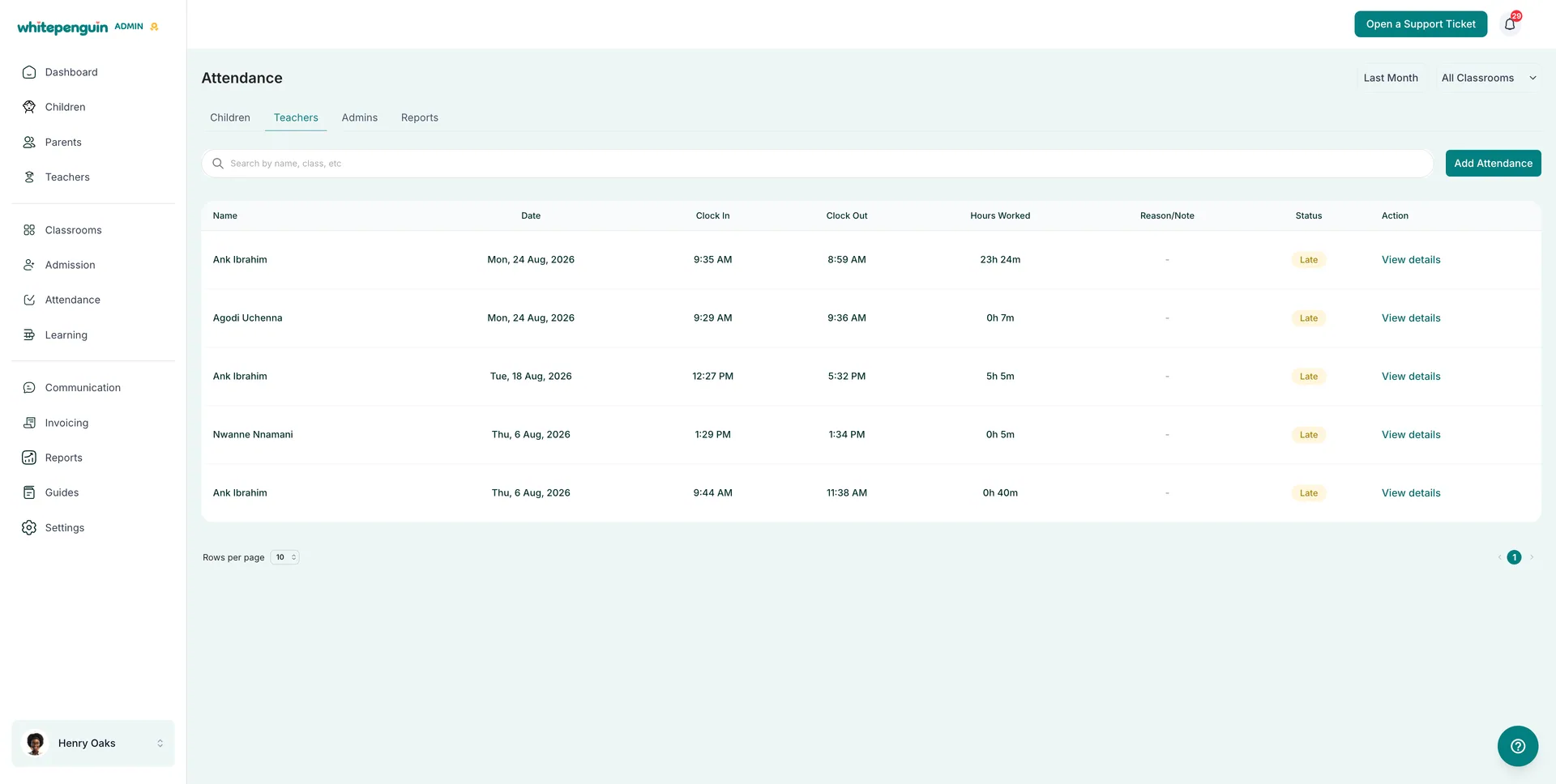
The **Teacher Attendance Sheet** is the **Teachers** tab of the **Attendance** section. It records every clock-in and clock-out for your teaching staff, calculates the hours they worked, and marks each record as **Present**, **Late**, **Absent**, or **On Leave**.
The **Attendance** section is organized into four tabs:
| Tab | What It Shows |
| ------------ | -------------------------------------- |
| **Children** | Attendance records for every child. |
| **Teachers** | Attendance records for teaching staff. |
| **Admins** | Attendance records for admin users. |
| **Reports** | Attendance reports and summaries. |
Each row on the **Teachers** tab is one attendance record:
| Column | What It Shows |
| ---------------- | ----------------------------------------------------------------------------------------------------------- |
| **Name** | The teacher the record belongs to. |
| **Date** | The day of the record, including the weekday — for example *Mon, 24 Aug, 2026*. |
| **Clock In** | The time the teacher started their day. |
| **Clock Out** | The time the teacher finished. |
| **Hours Worked** | Total time between clock-in and clock-out — for example *5h 5m*. Shows a dash when it cannot be calculated. |
| **Reason/Note** | An optional note explaining a late arrival, an early finish, or an absence. |
| **Status** | **Present** or **Late**. |
| **Action** | **View details** opens that teacher's full attendance profile. |
At the top of the page you can:
* Change the period with the **Date** dropdown.
* Narrow the list with the **All Classrooms** dropdown.
* Find a specific record with **Search by name, class, etc**.
* Load more or fewer records with **Rows per page**.
## How to Access by Admins [#how-to-access-by-admins]
1. Click **Attendance** in the left sidebar.
2. Open the **Teachers** tab.
3. Click **Add Attendance** to record a new entry, or click **View details** on any row to open that teacher's attendance profile.
## Roles & Access [#roles--access]
**Access is based on custom roles.** Your **school admin** creates **custom roles** for all users and controls exactly which permissions each role has — **View**, **Edit**, **Create**, and **Delete** — for every section of the system, including Attendance.
| User | What they can do with teacher attendance |
| ------------ | ---------------------------------------------------------------------------------------------------------------------------------------------- |
| **Admins** | **Create**, **view**, **archive**, and **delete** attendance records for any teacher. |
| **Teachers** | **View** their own attendance by default. With the right custom role, they can also **create**, **edit**, **archive**, and **delete** records. |
For staff users, each action maps to a permission on their custom role:
* **View** permission for Attendance — open the Teachers tab and read records.
* **Create** permission — add a new attendance record.
* **Edit** permission — correct the times or the note on an existing record.
* **Delete** permission — archive or permanently remove a record.
**Where to manage roles:** Go to **Settings → Roles & Permissions**, then click **+ Create Role** to build a new custom role, or select an existing role to toggle its permissions. **Super Admin** permissions are fixed and cannot be edited.
## How to Add a New Attendance Record [#how-to-add-a-new-attendance-record]
From **Attendance → Teachers**, click **Add Attendance** and fill in the record:
1. **Teacher**
* Select the teacher the record belongs to.
2. **Date**
* Choose the day being recorded.
3. **Clock In**
* Enter the time the teacher started.
4. **Clock Out**
* Enter the time the teacher finished.
5. **Reason/Note** — optional
* Add a short explanation for a late arrival, an early finish, or an absence. This is what appears in the **Reason/Note** column.
6. **Save the record**
* The record appears in the list, **Hours Worked** is calculated from the two times, and the **Status** badge is set for the day.
## Reading a Teacher's Attendance Profile [#reading-a-teachers-attendance-profile]
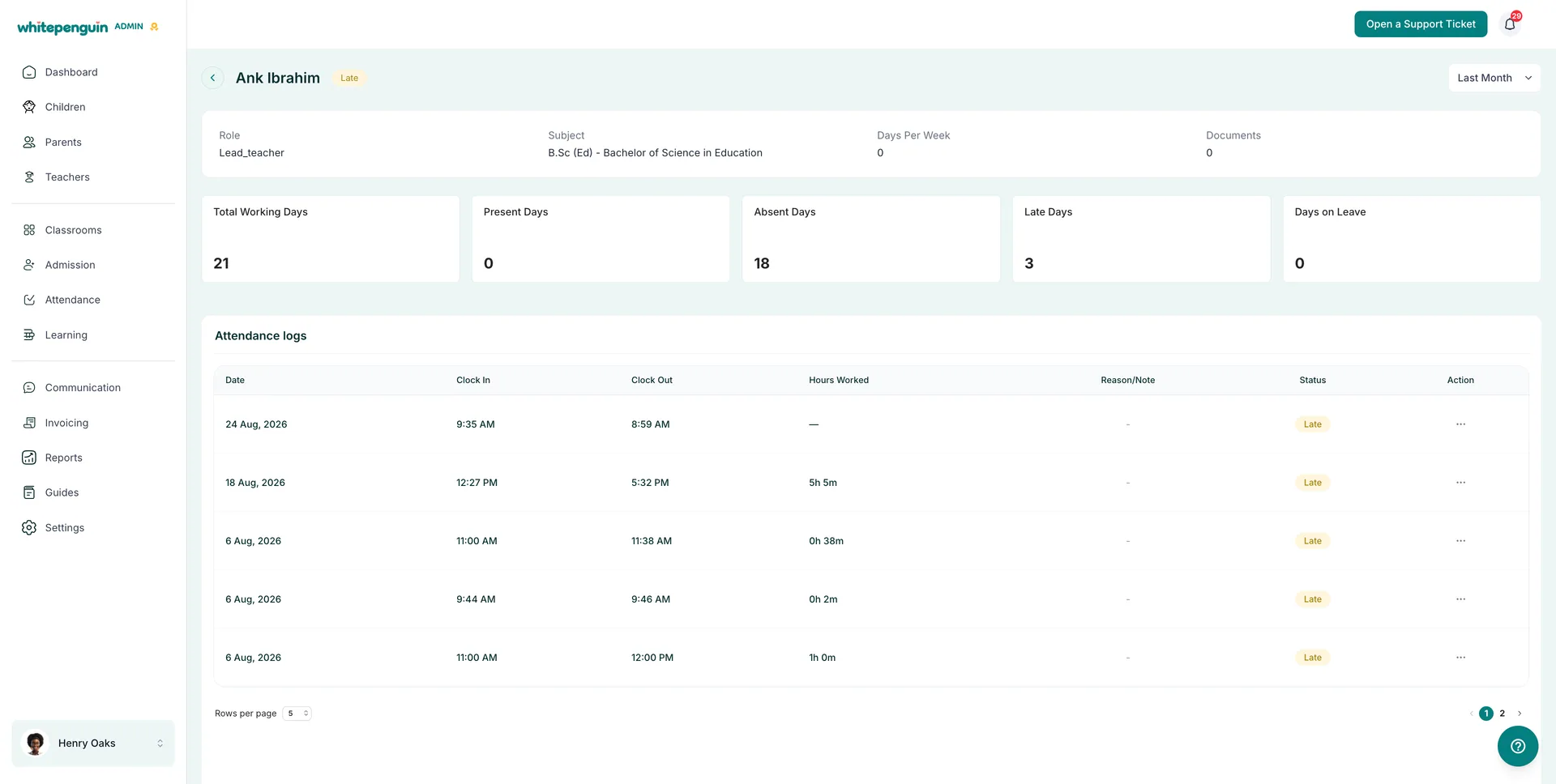
Click **View details** on any row to open that teacher's profile. The header shows their name with the current status badge, plus a **Date** dropdown to change the period.
The profile row shows **Role**, **Subject**, **Days Per Week**, and **Documents**.
Below it, five summary cards cover the selected period:
| Card | What It Counts |
| ---------------------- | ------------------------------------------------------------ |
| **Total Working Days** | Working days in the selected period. |
| **Present Days** | Days the teacher was marked **Present**. |
| **Absent Days** | Working days with no attendance recorded. |
| **Late Days** | Days the teacher clocked in after their expected start time. |
| **Days on Leave** | Approved leave days. |
The **Attendance logs** table lists every individual record with its **Date**, **Clock In**, **Clock Out**, **Hours Worked**, **Reason/Note**, and **Status**, plus an **⋯** menu to **view**, **archive**, or **delete** that record.
## Attendance Statuses [#attendance-statuses]
| Status | Meaning |
| ------------ | ------------------------------------------------------- |
| **Present** | The teacher clocked in on time and worked the day. |
| **Late** | The teacher clocked in after their expected start time. |
| **Absent** | No attendance was recorded for a working day. |
| **On Leave** | Approved leave — counted under **Days on Leave**. |
## Tips [#tips]
* **Set the period first.** The list and every summary card follow the **Date** dropdown, so change it before reading the numbers.
* **Use the classroom filter** to review the staff attached to one classroom instead of the whole team.
* **Always add a Reason/Note** for a late arrival or absence — it is the only context the record keeps, and it carries through to reports.
* **A dash in Hours Worked means the record is incomplete.** Open **View details** and correct the clock-in or clock-out time.
* **Compare Hours Worked with Days Per Week** on the profile to see whether a teacher is covering their expected schedule.
* **Watch Late Days, not just Absent Days.** A teacher can be present every day and still be clocking in late.
* **Head to the Reports tab** when you need staff attendance totals rather than one person at a time.
## FAQs [#faqs]
Admins can create, view, edit, and delete any record. Other users can add records if their **custom role** includes **Create** permission for Attendance.
Because the total cannot be calculated — usually the record is missing a clock-out, or the clock-out time is earlier than the clock-in time. Fix the times and the total appears.
**Absent** means no attendance was recorded for a working day. **On Leave** means the day was approved leave, and it is counted separately under **Days on Leave**.
Click **View details** on their row. You get their profile, the five summary cards, and the complete **Attendance logs** table.
Check the two filters at the top right — the **Date** period dropdown and the **All Classrooms** dropdown both limit what the sheet shows.
Yes — use the **Reports** tab in the Attendance section for summaries across staff and date ranges.