# Log Nap Time
URL: https://guide.whitepenguin.co/docs/classrooms-activities/log-nap-time/
> Learn how to log nap time in WhitePenguin by selecting the classroom and child, then recording the start and end times.
## Overview [#overview]
Use **Log Nap Time** to record when a child starts and ends a nap. Each entry appears in the Activities feed and helps your team keep daily activity records accurate.
You can include:
* **Classroom**
* **Student**
* **Start time**
* **End time** (optional)
* **Notes** (optional)
* **Notify parent/guardian** (optional)
## How to access [#how-to-access]
Where you’ll find this depends on your role:
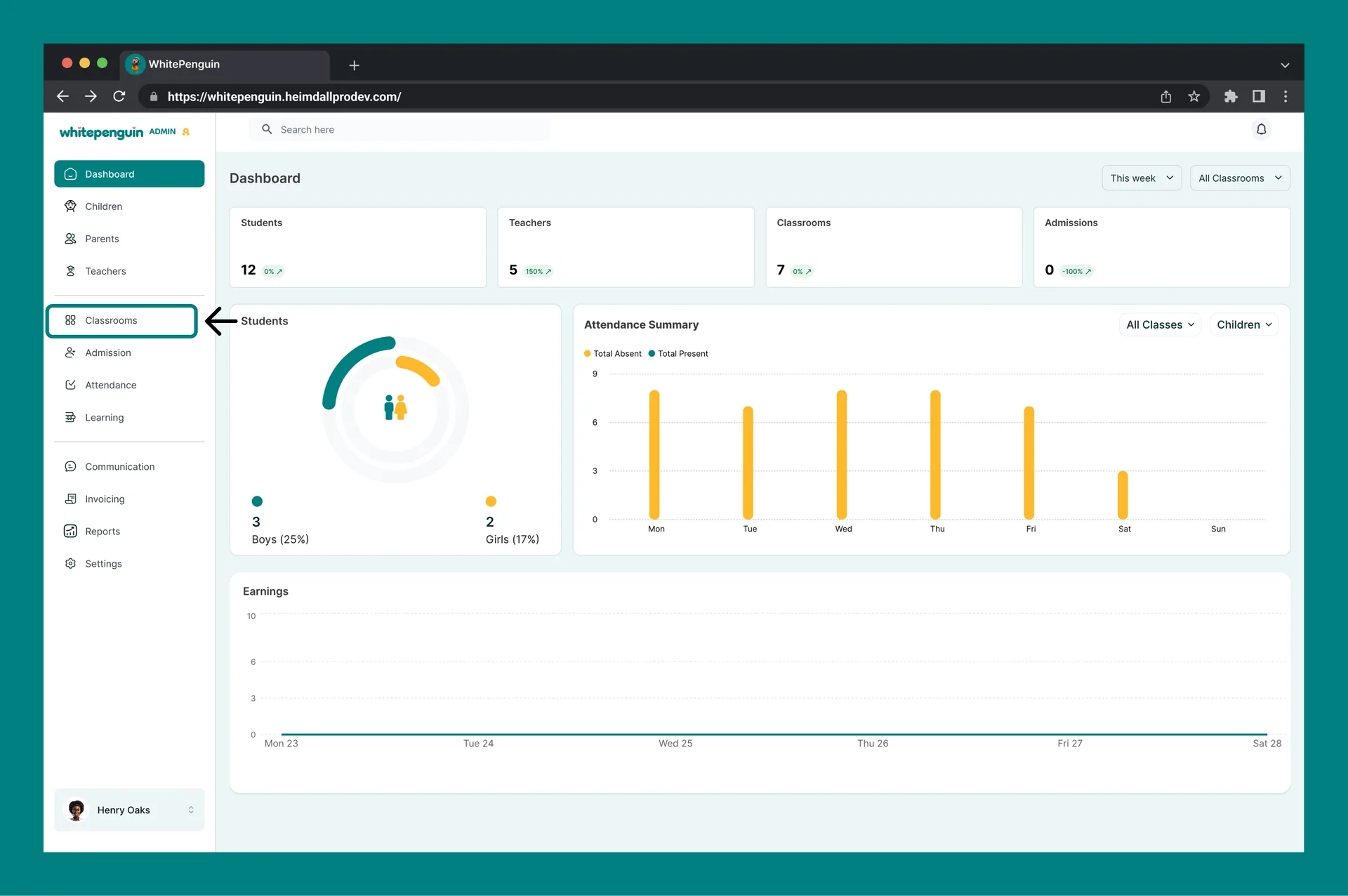
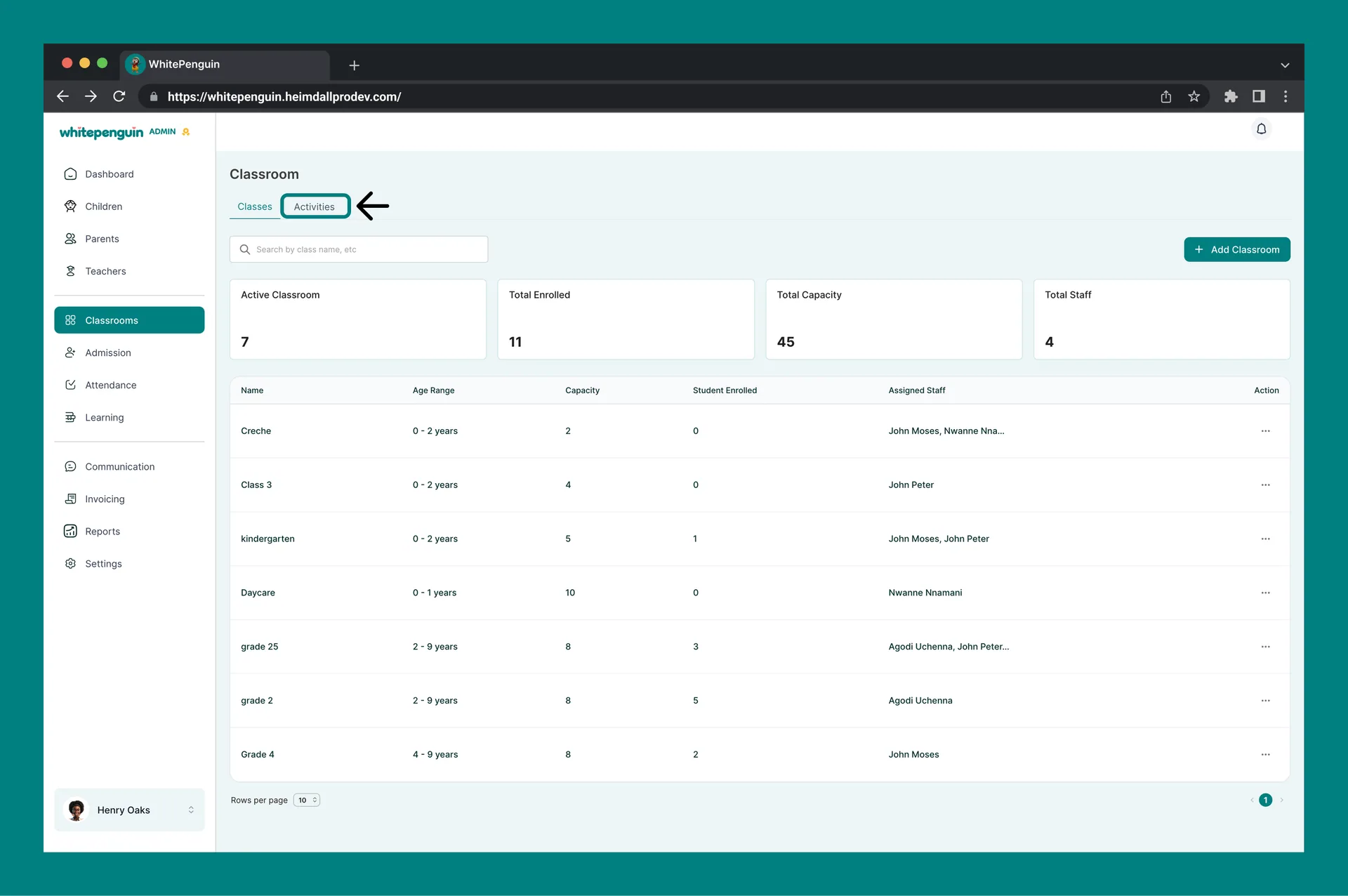
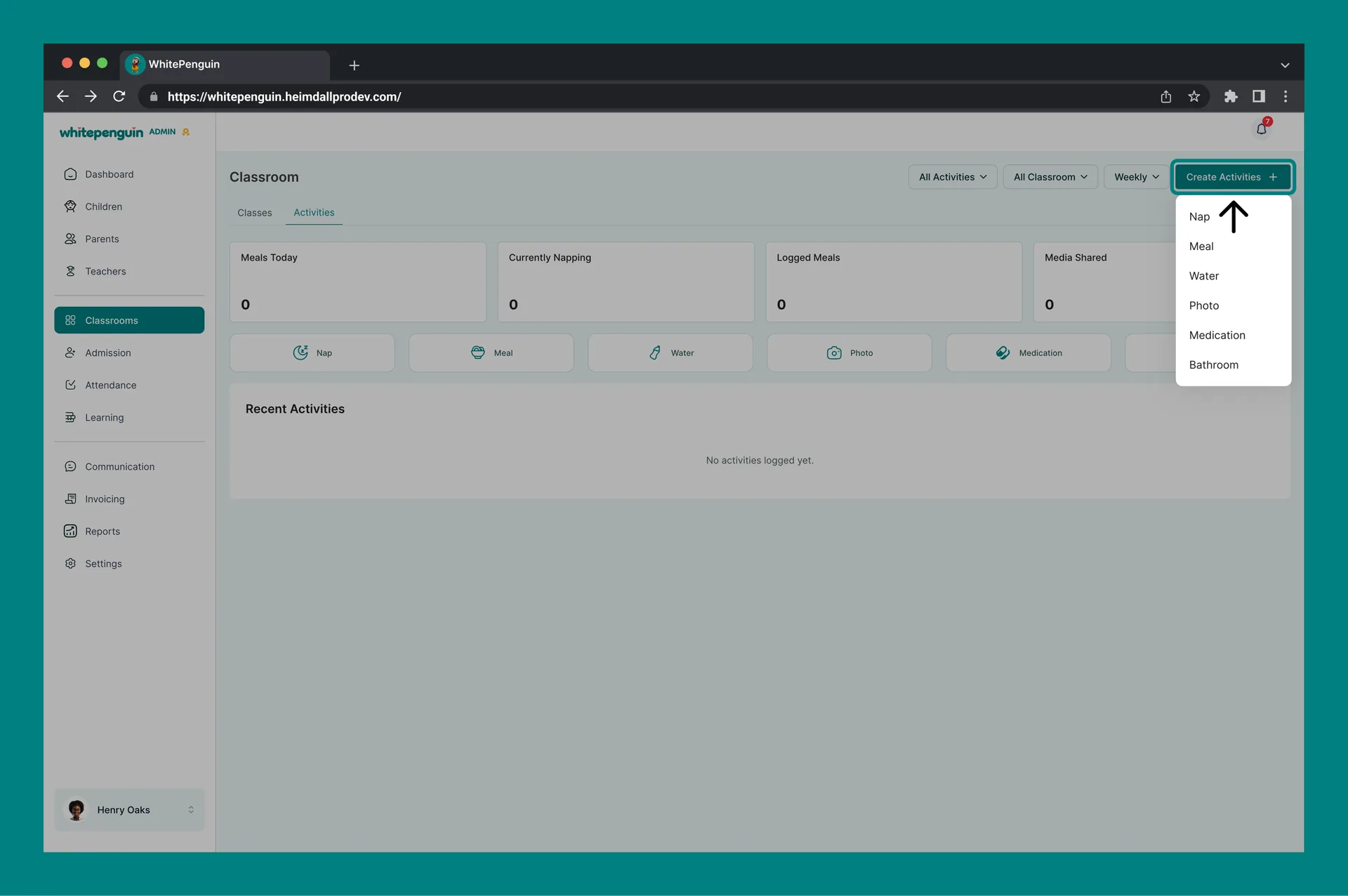
* **Admins**
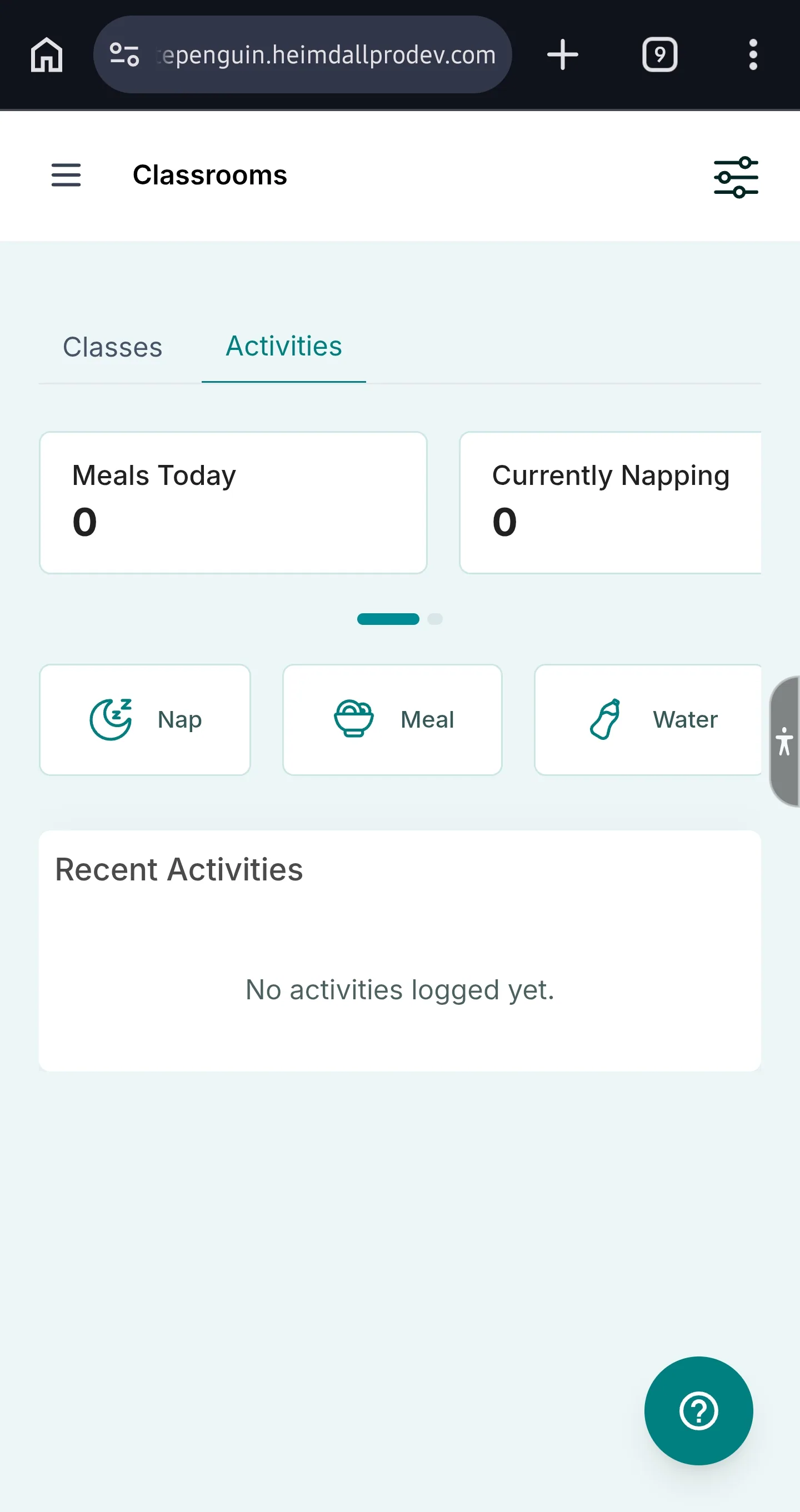
1. Click **Classrooms** in the left sidebar.
2. Open the **Activities** tab.
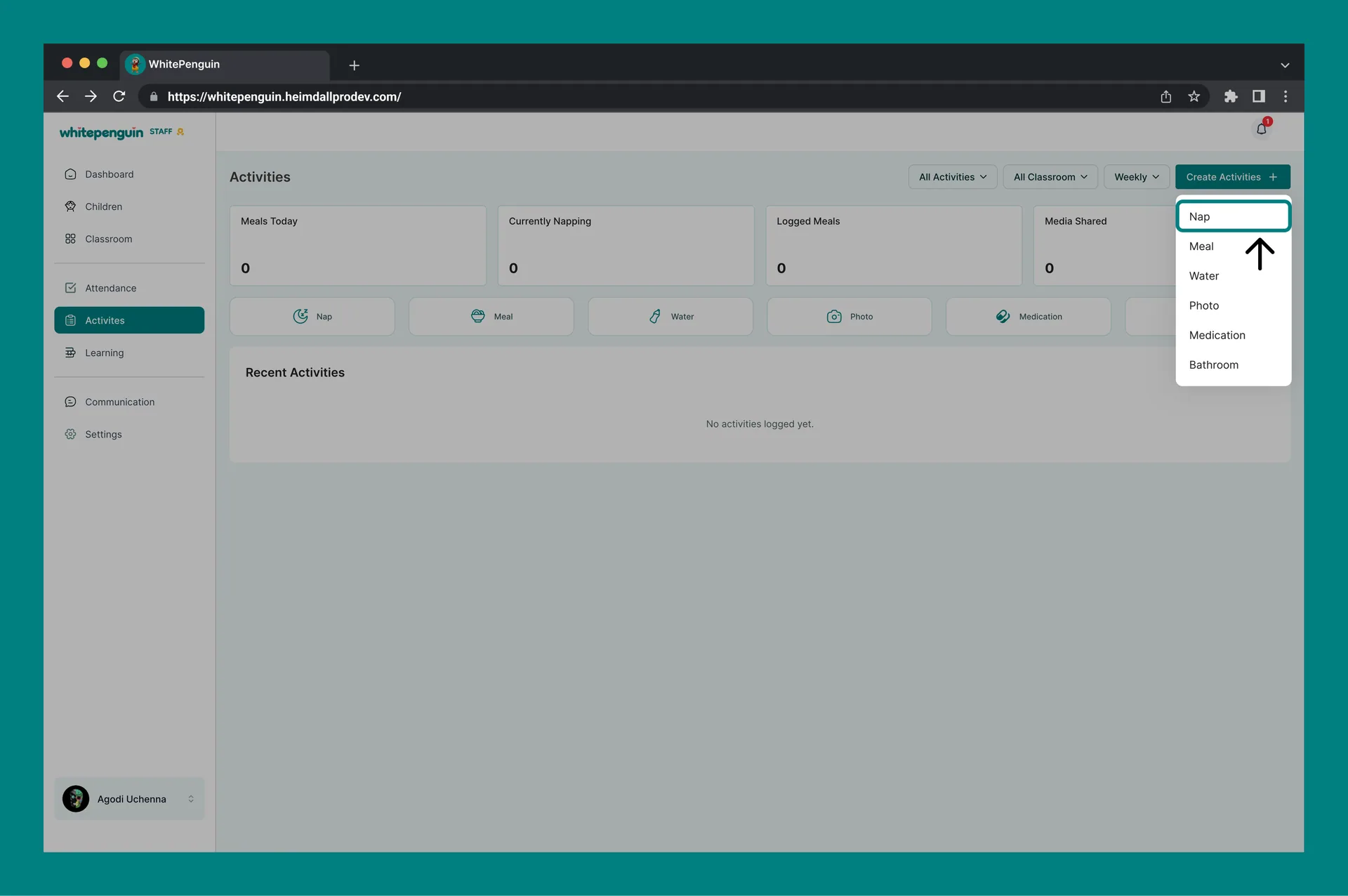
3. Click **Create Activities** (top right), then choose **Nap**.
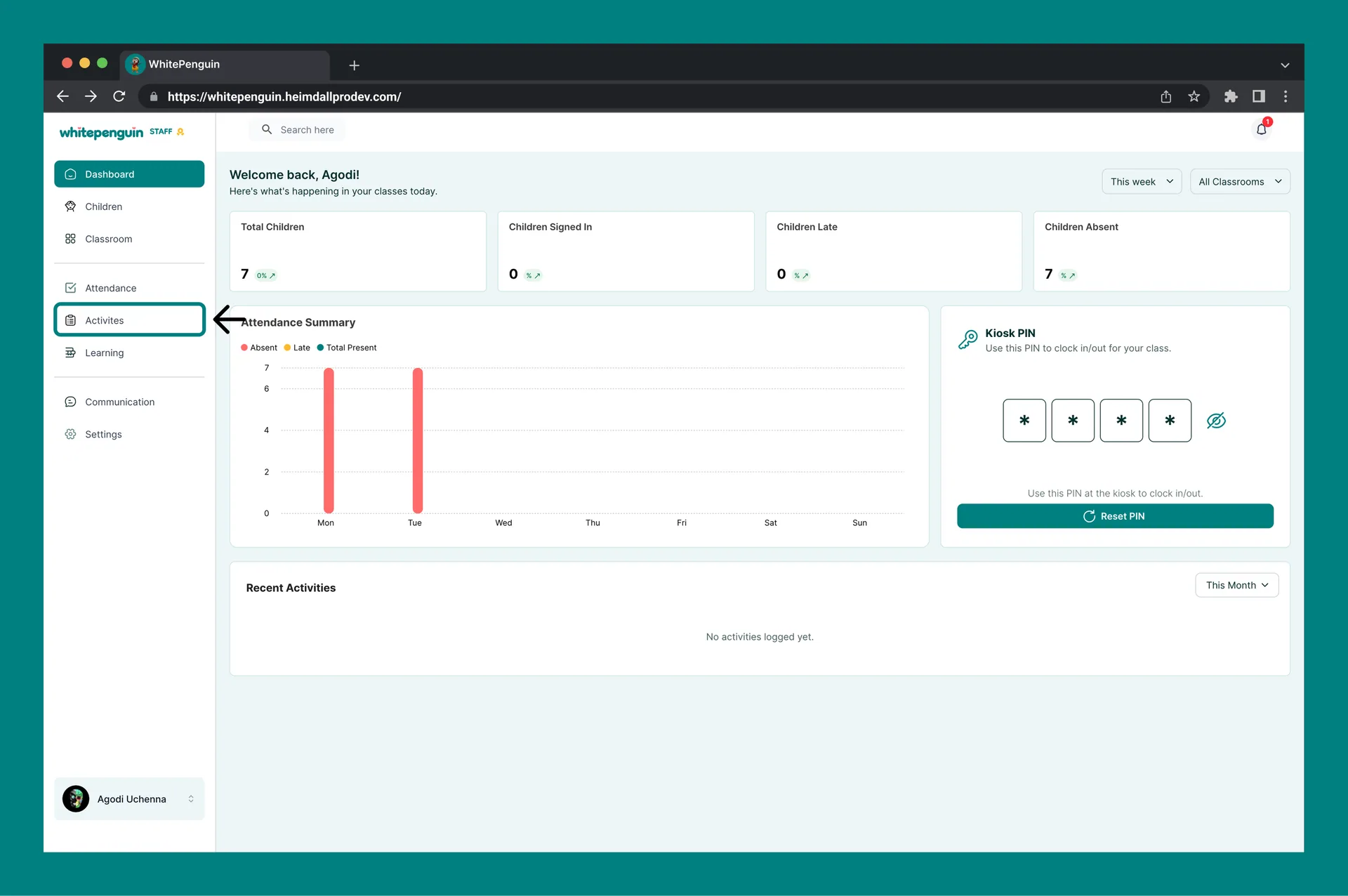
* **Staff**
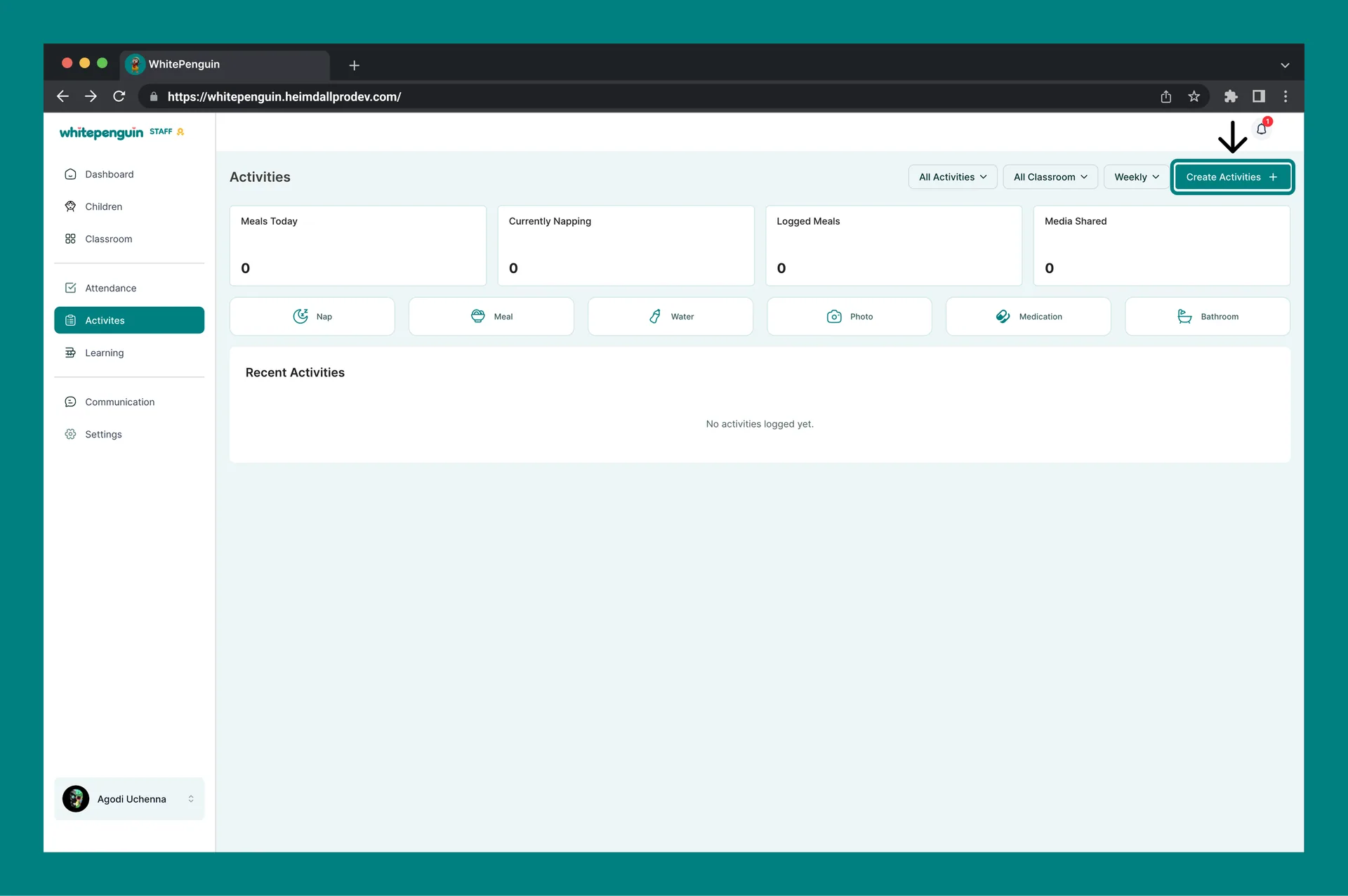
1. Click **Activities** in the left sidebar.
2. Click **Create Activities**, then choose **Nap**.
## Roles & Access [#roles--access]
**Access is based on custom roles.** Your **school admin** creates **custom roles** for all users and controls exactly which permissions each role has — **View**, **Edit**, **Create**, and **Delete** — for every section of the system, including Activities.
Whether you can log nap time depends entirely on the **custom role** assigned to you:
* Roles with **Create** permission for Activities can log nap entries.
* Roles with **View** permission can see the Activities feed and nap history.
* Classroom and child visibility follows the role's permissions and the user's classroom assignments.
**Where to manage roles:** Go to **Settings → Roles & Permissions**, then click **+ Create Role** to build a new custom role, or select an existing role to toggle its permissions. **Super Admin** permissions are fixed and cannot be edited.
## How to log nap time [#how-to-log-nap-time]
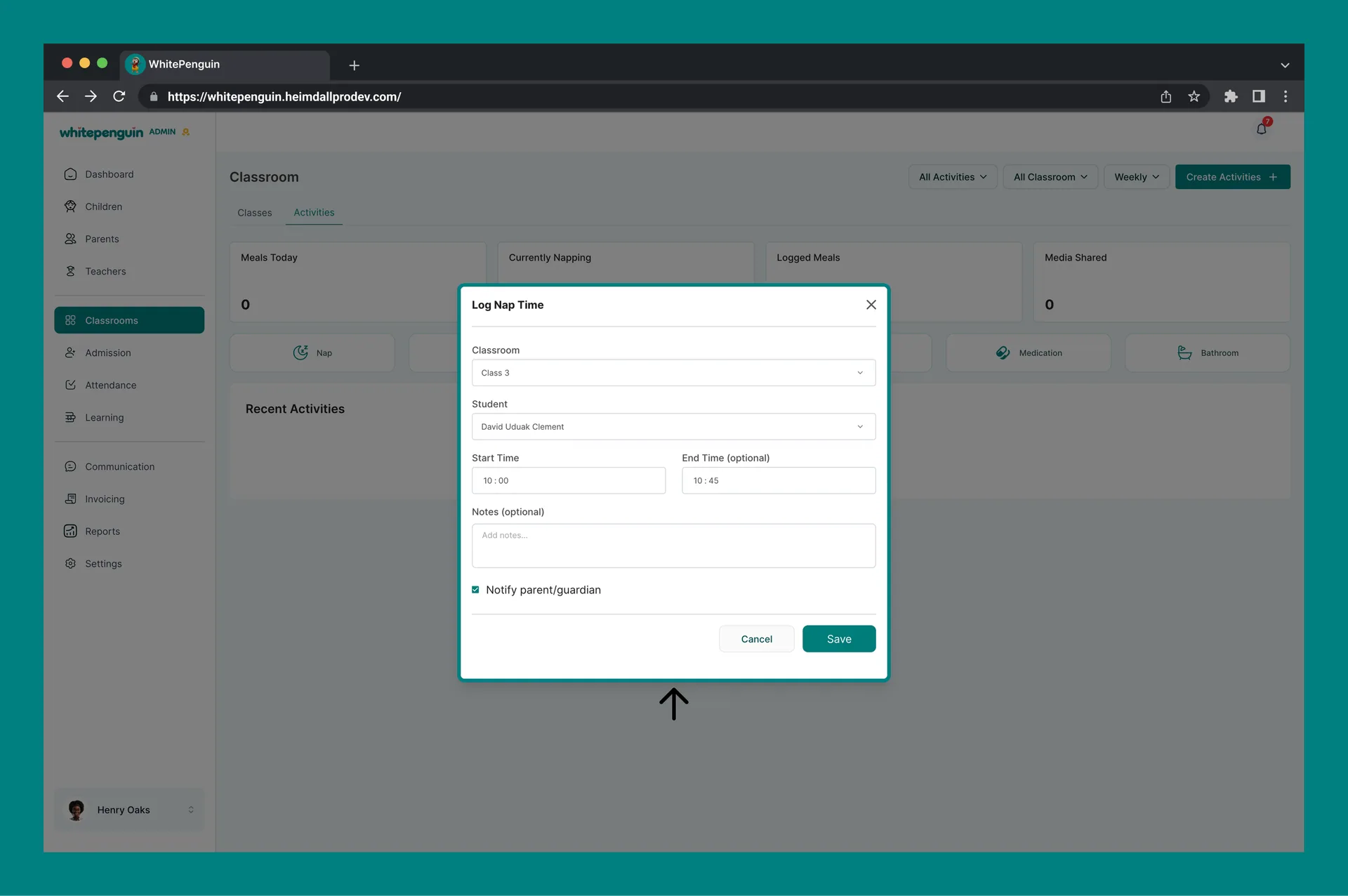
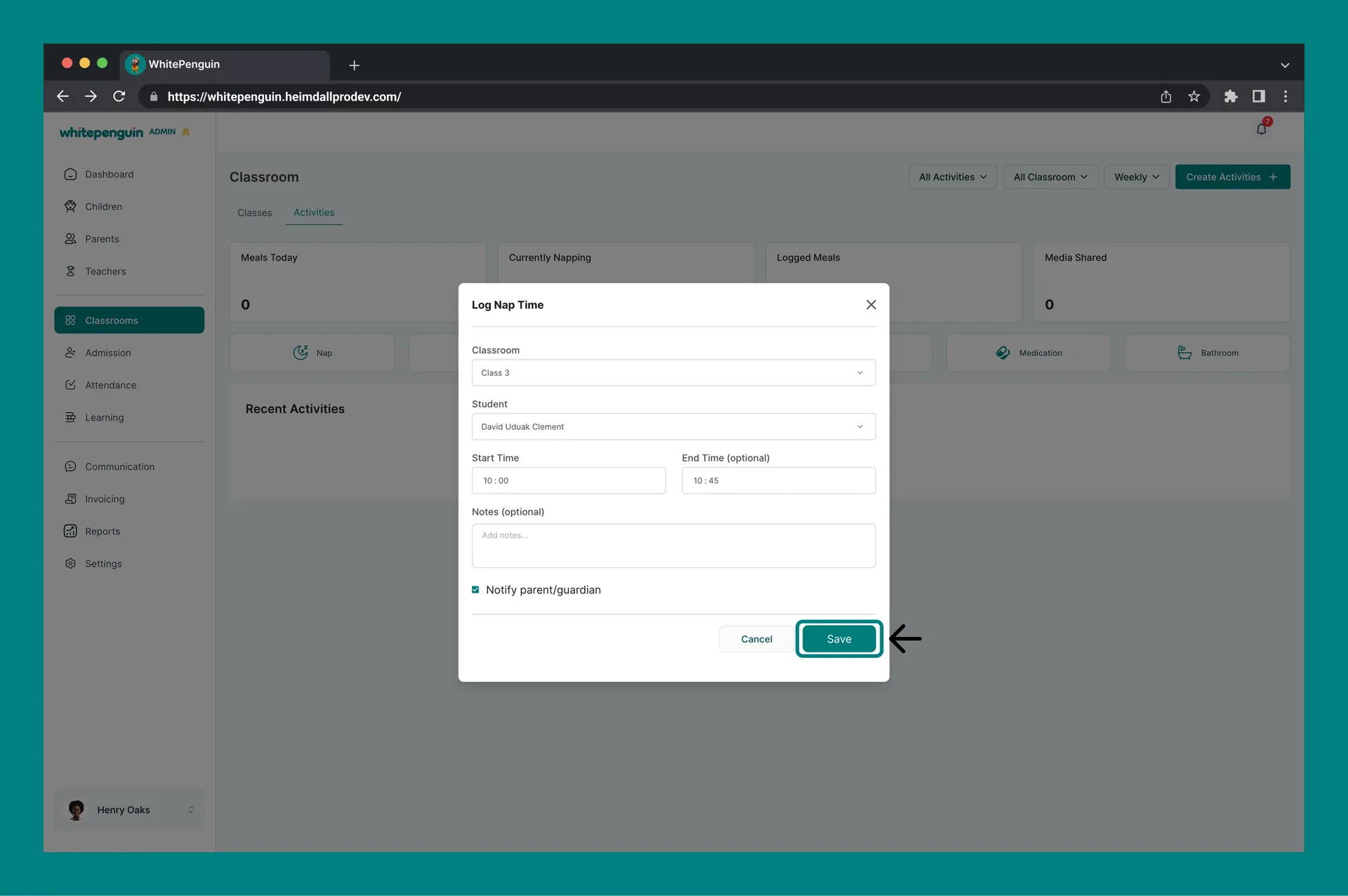
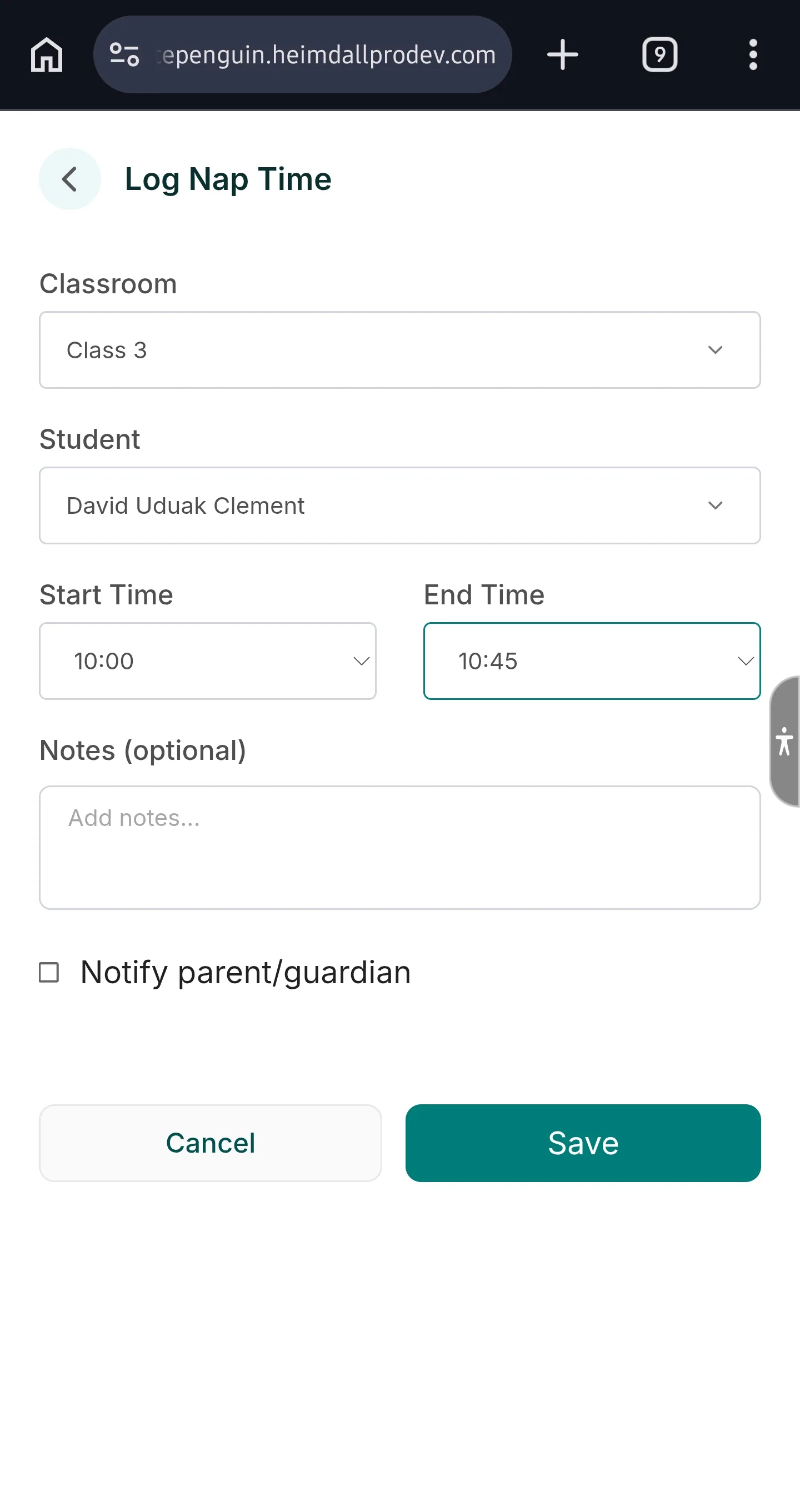
When the **Log Nap Time** window opens, complete the fields:
1. **Classroom**
* Select the classroom.
* **Admins:** can choose from all available classrooms.
* Other users see only the classrooms their custom role permits.
* Access may also be limited to specific assigned children.
2. **Student**
* Select the child.
* If you don’t see any students, select a classroom first.
3. **Start Time**
* Enter when the nap started.
4. **End Time (optional)**
* Add an end time if the nap already ended.
* Leave it blank if the child is still napping.
5. **Notes (optional)**
* Add any details you want to keep on record.
6. **Notify parent/guardian** (optional)
* Turn this on if you want to notify the parent/guardian.
7. Click **Save**.
## Tips [#tips]
* If you can’t find a classroom, ask an admin to confirm your classroom assignment.
* If you’re logging an in-progress nap, leave **End Time** empty and update it later.
## FAQs [#faqs]
Classroom visibility depends on your **custom role** and classroom assignments. Roles with full Classroom access see every classroom; others only see the classrooms (and children) they're assigned to.
Your custom role may not include **Create** permission for Activities. Ask your school admin to update your role in **Settings → Roles & Permissions**.
Select the correct **Classroom** first. If the child still doesn’t appear, your role may not have access to that classroom/child or the child may not be assigned correctly.
No. End Time is optional. Leave it blank if the nap is still in progress.