# Using Full Search Feature
URL: https://guide.whitepenguin.co/docs/getting-started/using-full-search-feature/
> Discover how to use the Full Search feature to quickly find any parent, teacher, or child in your school — all from a single search bar.
## Overview [#overview]
The **Full Search** feature allows Admin users to instantly look up any person in the system — students, parents, or teachers — without navigating through individual sections. Results are grouped by category and are directly clickable, taking you straight to the relevant profile page.
## How to Access the Search Feature [#how-to-access-the-search-feature]
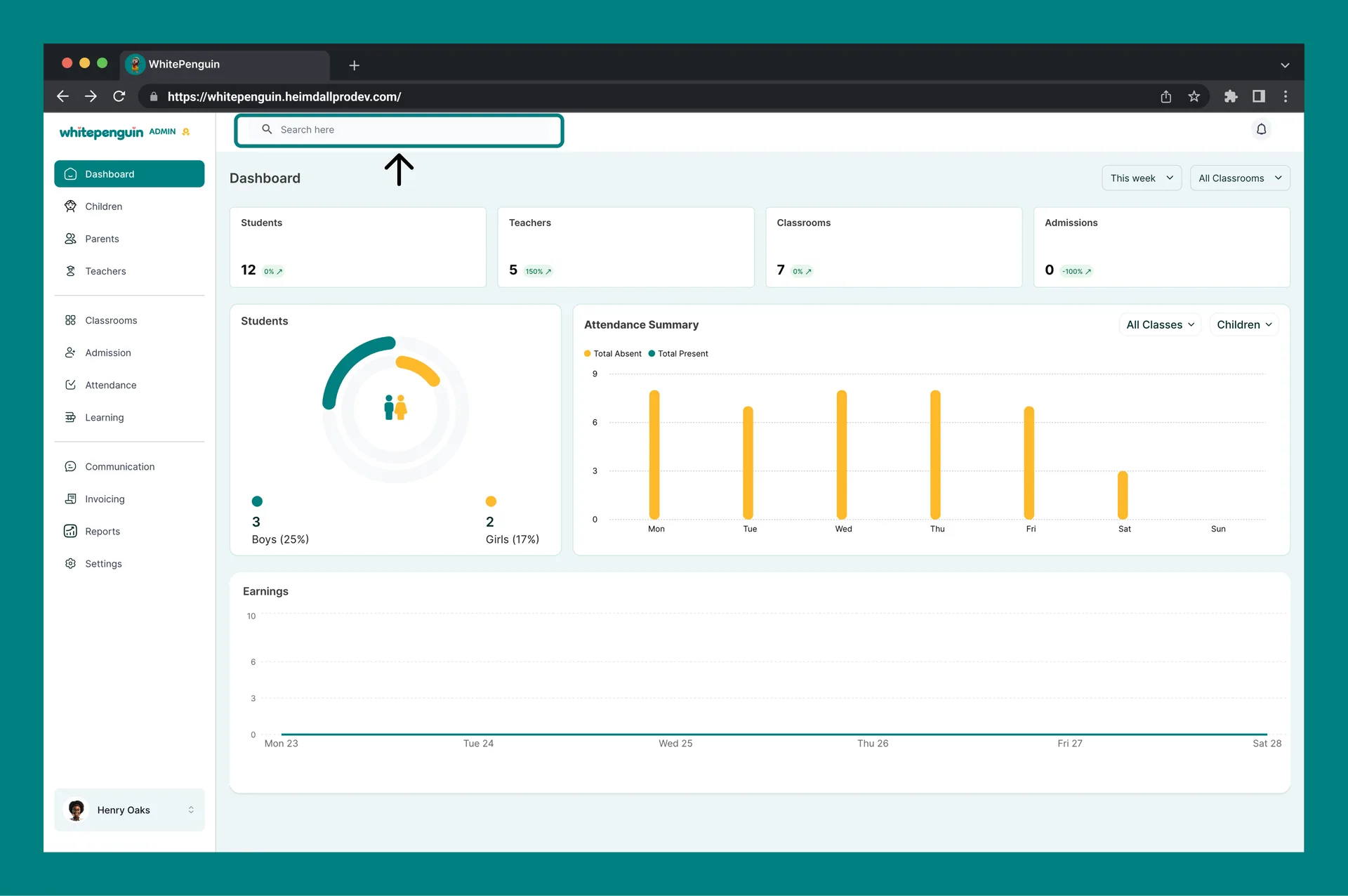
You can access the Search feature by clicking on the **Search bar** located at the **top left of the dashboard header** (labeled *"Search here"*).
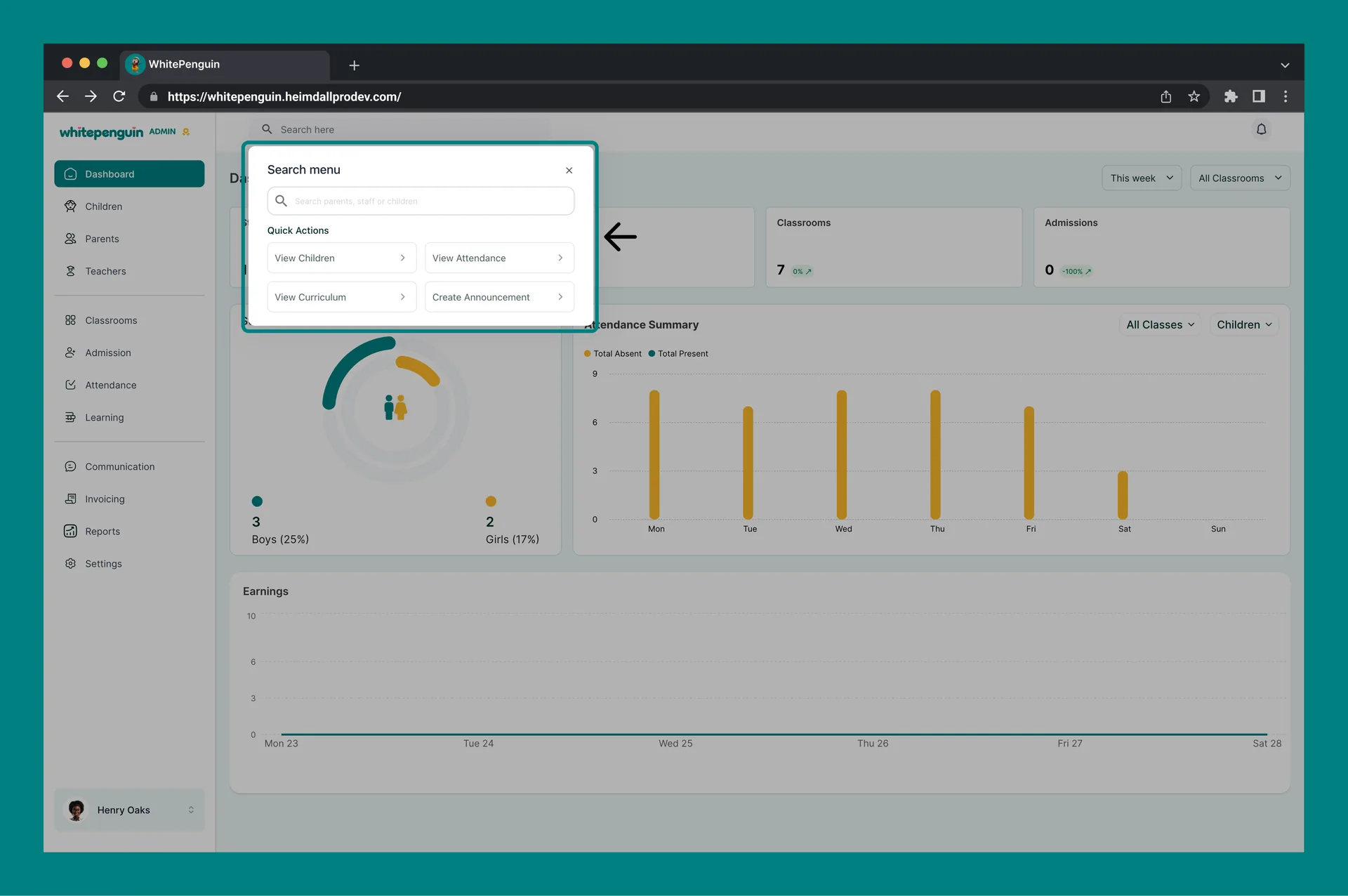
Once clicked, a **Search menu modal** will appear with:
* A text input field to type your query
* A [**Quick Actions**](https://guide.whitepenguin.co/docs/getting-started/using-quick-actions/) panel (shown before you type) with shortcuts like View Children, View Attendance, View Curriculum, and Create Announcement
The search bar is accessible from **any page** in the admin panel — not just the Dashboard. You do not need to return to the Dashboard to use it.
## Search by Parent, Teacher, or Child [#search-by-parent-teacher-or-child]
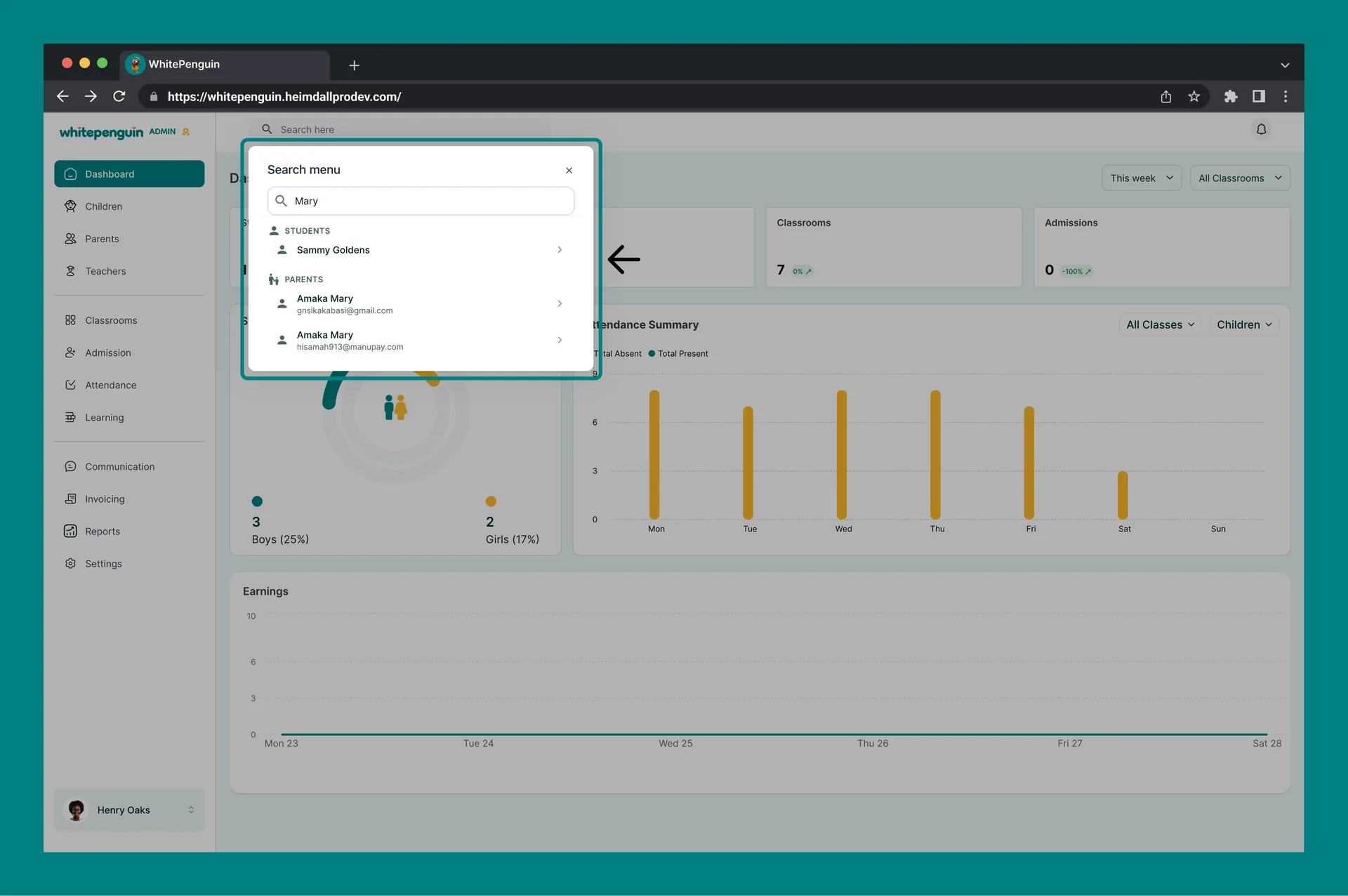
As you type in the search field, results appear in real time grouped by category:
### Search by Child (Student) [#search-by-child-student]
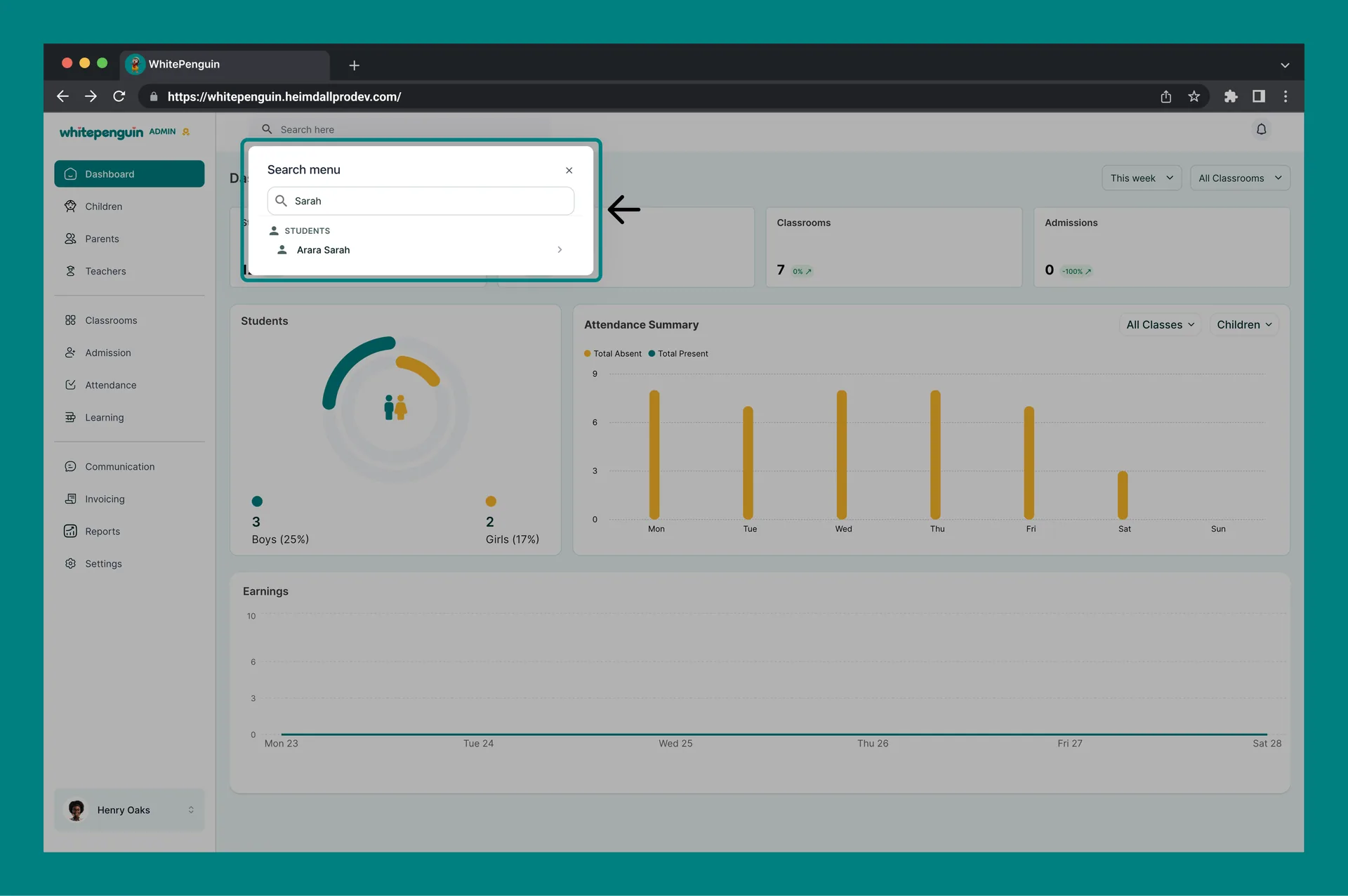
1. Type the child's **first or last name**
2. Results appear under the **STUDENTS** section
3. Each result shows the child's **full name**
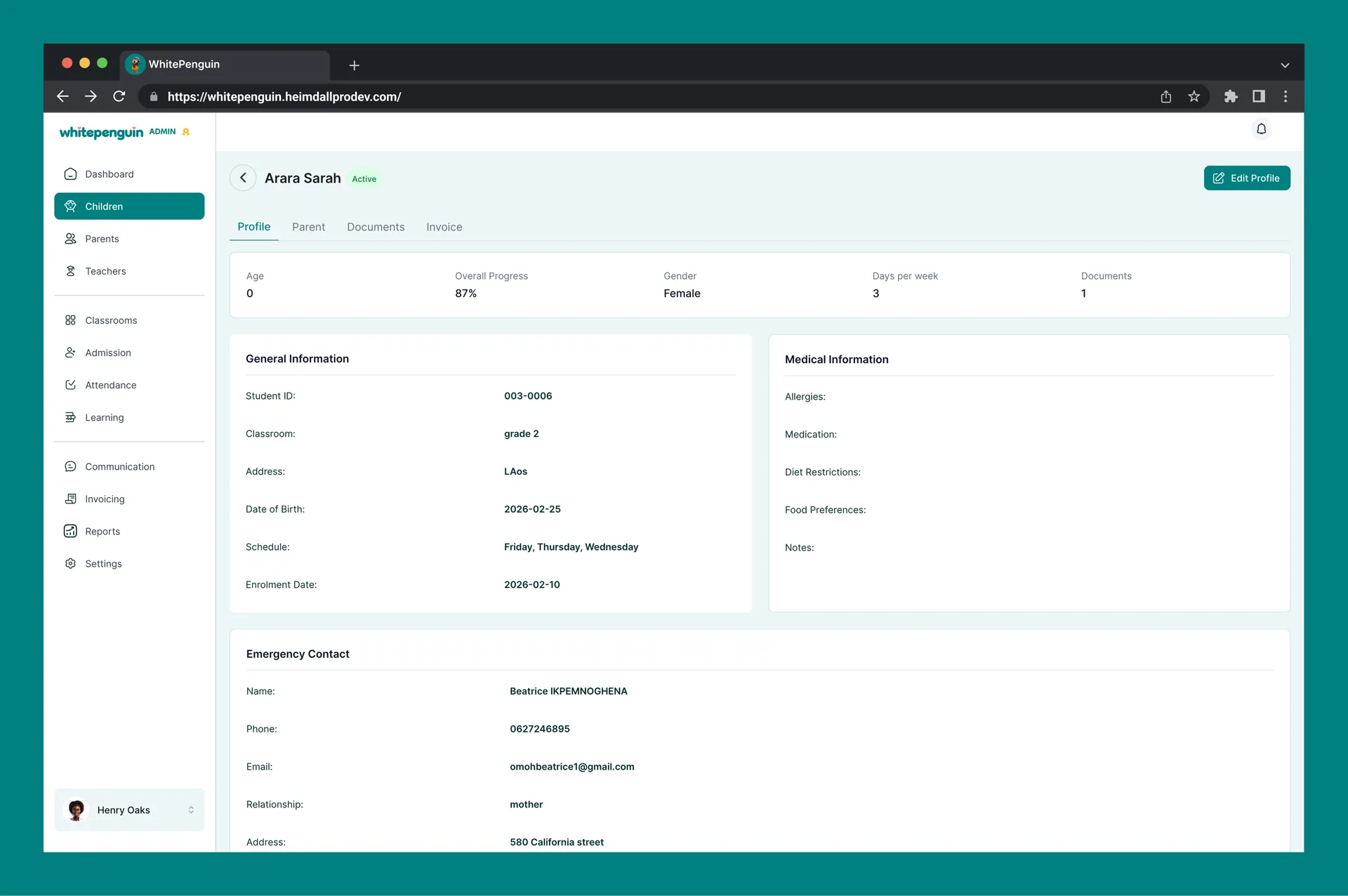
4. Click the result row to go directly to the child's profile
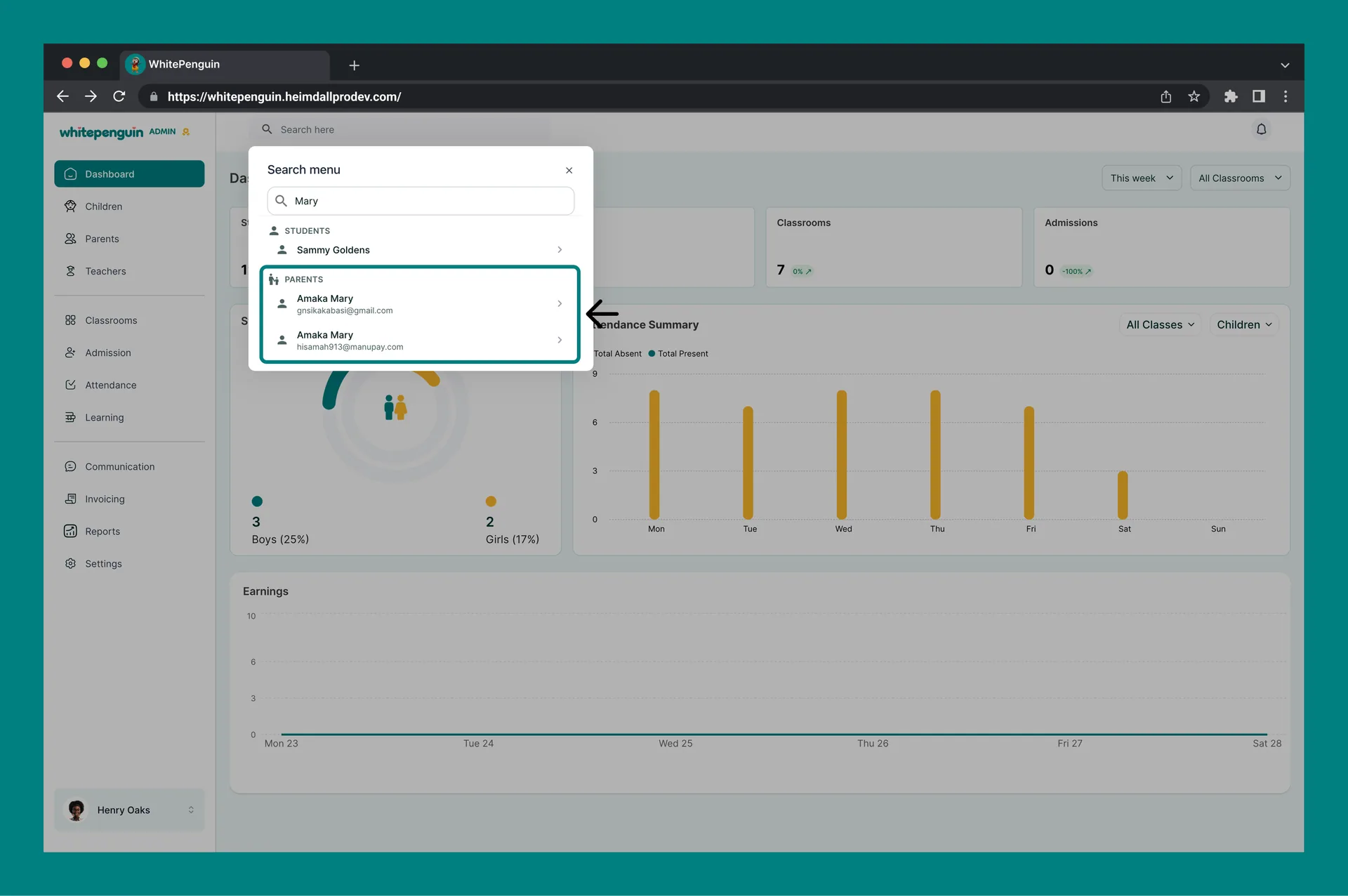
### Search by Parent [#search-by-parent]
1. Type the parent's **name or email address**
2. Results appear under the **PARENTS** section
3. Each result shows the parent's **full name** and their **registered email**
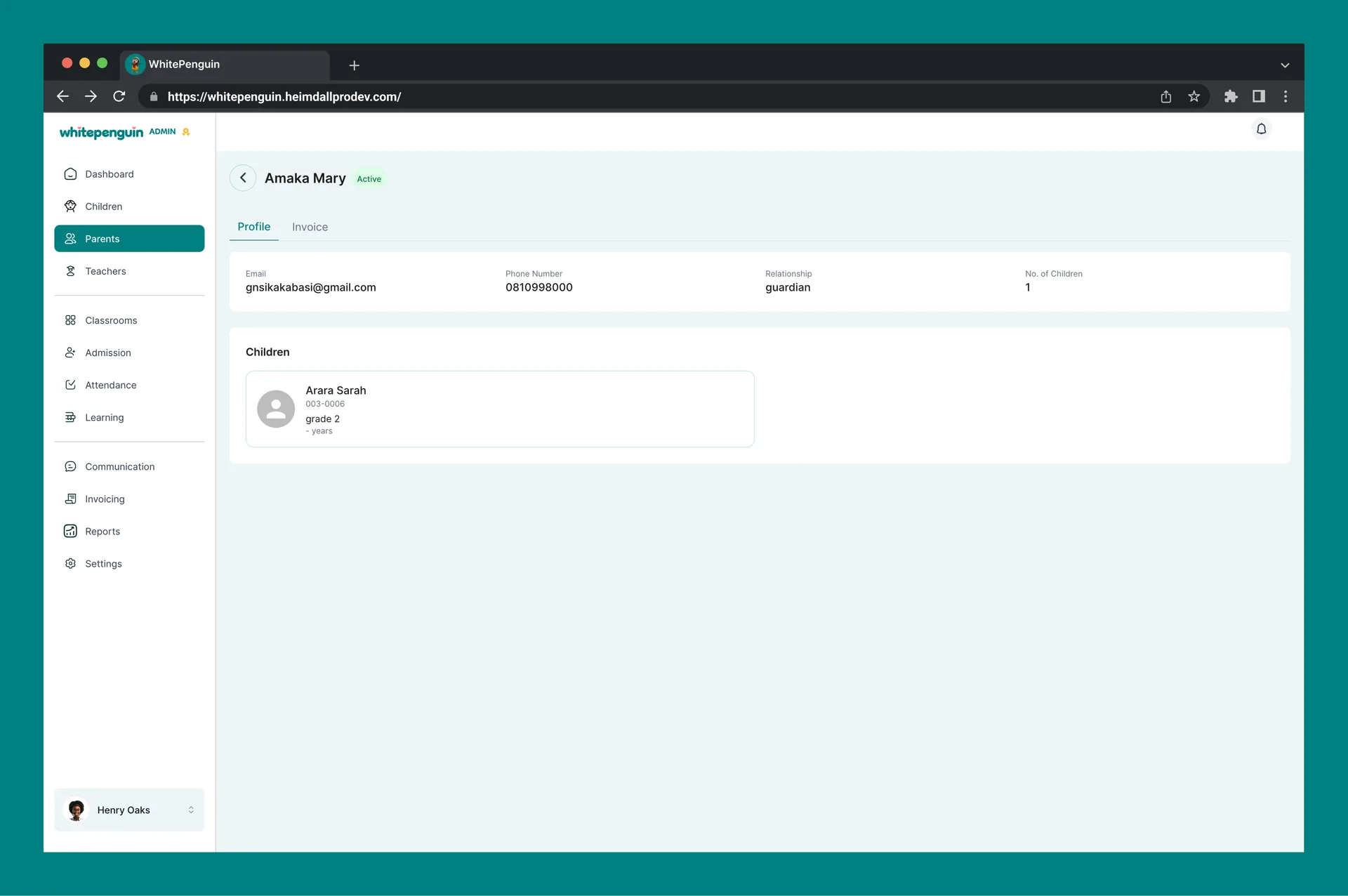
4. Click the result row to go directly to the parent's profile
### Search by Teacher [#search-by-teacher]
1. Type the teacher's **first or last name**
2. Results appear under the **TEACHERS** section
3. Each result shows the teacher's **full name**
4. Click the result row to go directly to the teacher's profile
Search is **name-based and email-based**. Make sure profiles are fully filled out (especially names and emails) for best search results.
## View Results & Navigate [#view-results--navigate]
* Results are displayed **grouped by type** (Students, Parents, Teachers) so you can quickly identify what you are looking at.
* Each result row has a **→ arrow icon** on the right — click anywhere on the row to navigate directly to that person's profile page.
* The search results update **instantly as you type** — no need to press Enter.
* To **dismiss the search modal**, click the **✕** icon in the top-right corner of the modal, or press **Escape** on your keyboard.
* If no results match your query, the modal will display an empty state — double-check the spelling or try a partial name.
## FAQs [#faqs]
Click the **Search bar** at the top left of the admin header (labeled *"Search here"*). A search modal will open immediately. You can access it from any page in the admin panel.
No. The search feature currently supports searching by **name only** for students, parents, and teachers. Email-based search is not available at this time.
Make sure the profile has been fully created and saved in the system. If the name was entered with a typo or the profile is incomplete, it may not appear. Try searching with a partial name or check the profile under **Children** or **Parents** directly.
Before you type anything, the search modal shows a [**Quick Actions**](https://guide.whitepenguin.co/docs/getting-started/using-quick-actions/) panel with shortcuts to common tasks: View Children, View Attendance, View Curriculum, and Create Announcement. Click any of them to navigate instantly without searching.
Currently, the Full Search feature supports searching for **Students, Parents, and Teachers** only. To find classrooms or invoices, navigate directly to the **Classrooms** or **Invoicing** sections from the sidebar.
Click anywhere on a result row — or the **→ arrow** on the right side of the row — to open that person's full profile page directly.