# Account & Security
URL: https://guide.whitepenguin.co/docs/school-settings/account-security/
> Learn how to change your account password and keep your WhitePenguin account secure. This feature is available to all users — Admins, Staff, and Parents.
## Overview [#overview]
The **Account & Security** section allows any user to update their account password at any time. It is designed to help you maintain a strong, secure password that protects your account and your school's data.
This section is available to **all user types** in WhitePenguin:
| User Type | Can access Account & Security? |
| ------------------- | ------------------------------------------------------- |
| **Admin** | ✅ Yes — via Settings → Account & Security |
| **Staff (Teacher)** | ✅ Yes — via their account settings |
| **Parent** | ✅ Yes — via their account settings in the parent portal |
## How to Access [#how-to-access]
**For Admins:**
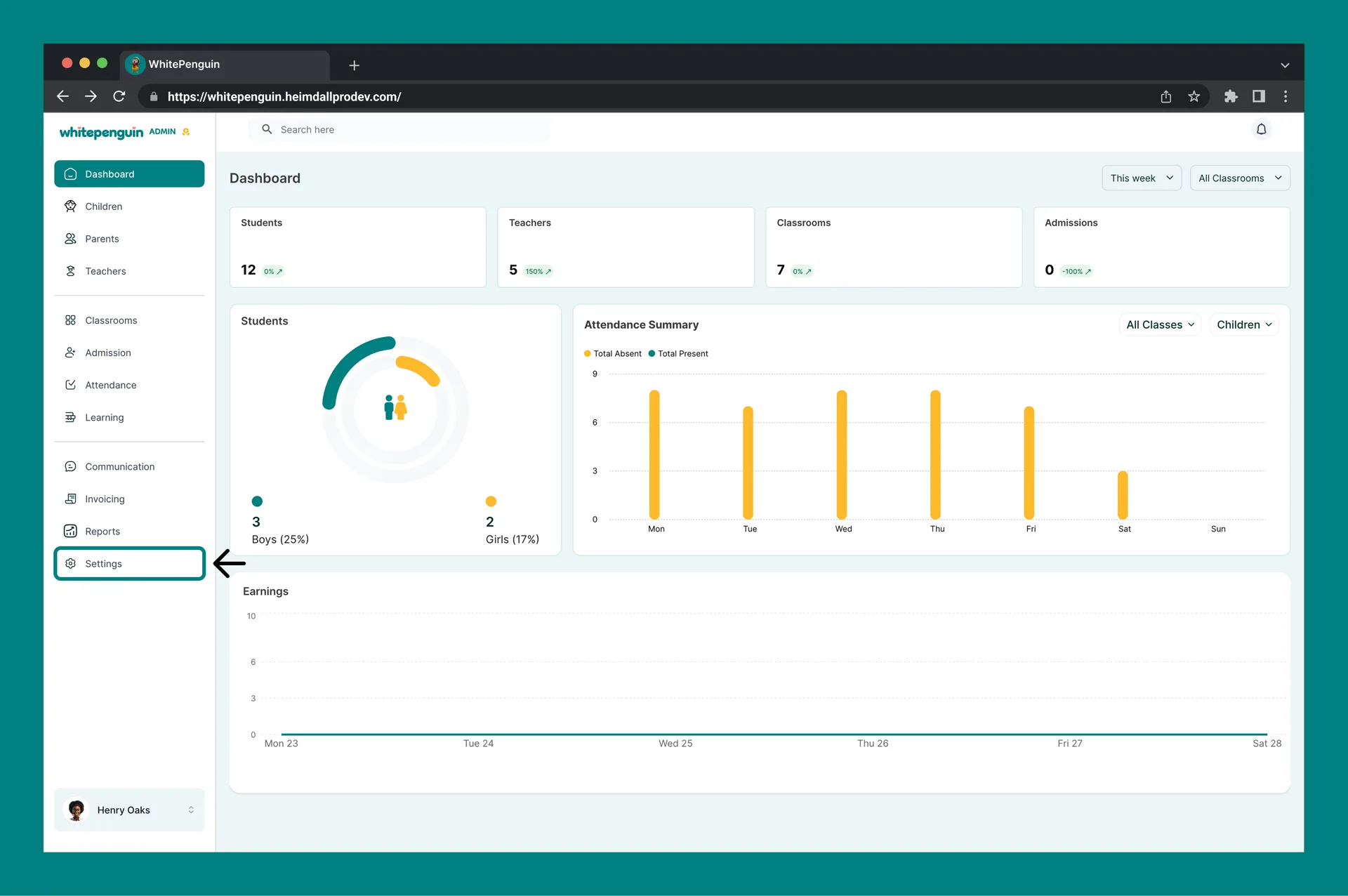
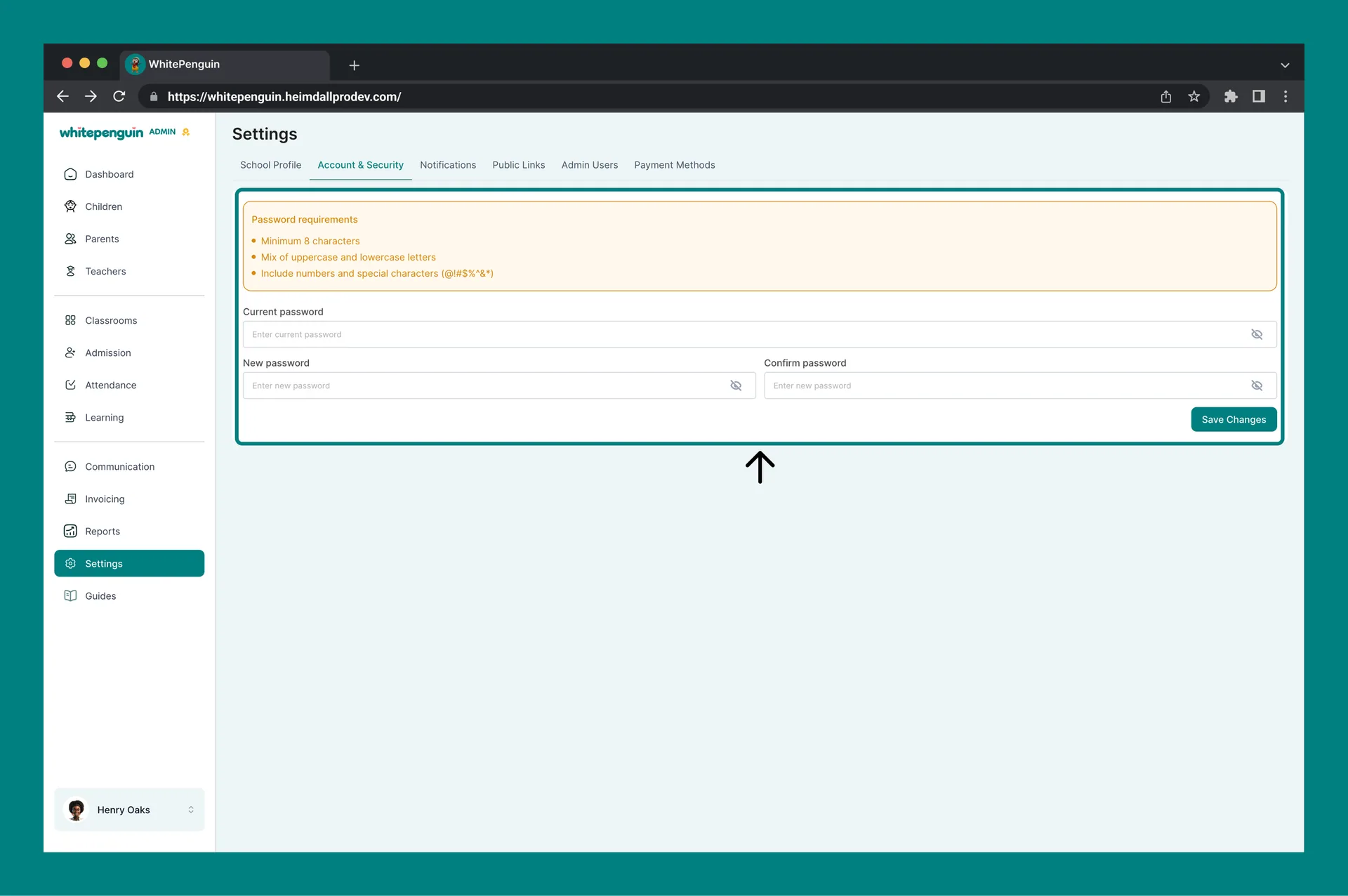
1. Click **Settings** in the **left sidebar**.
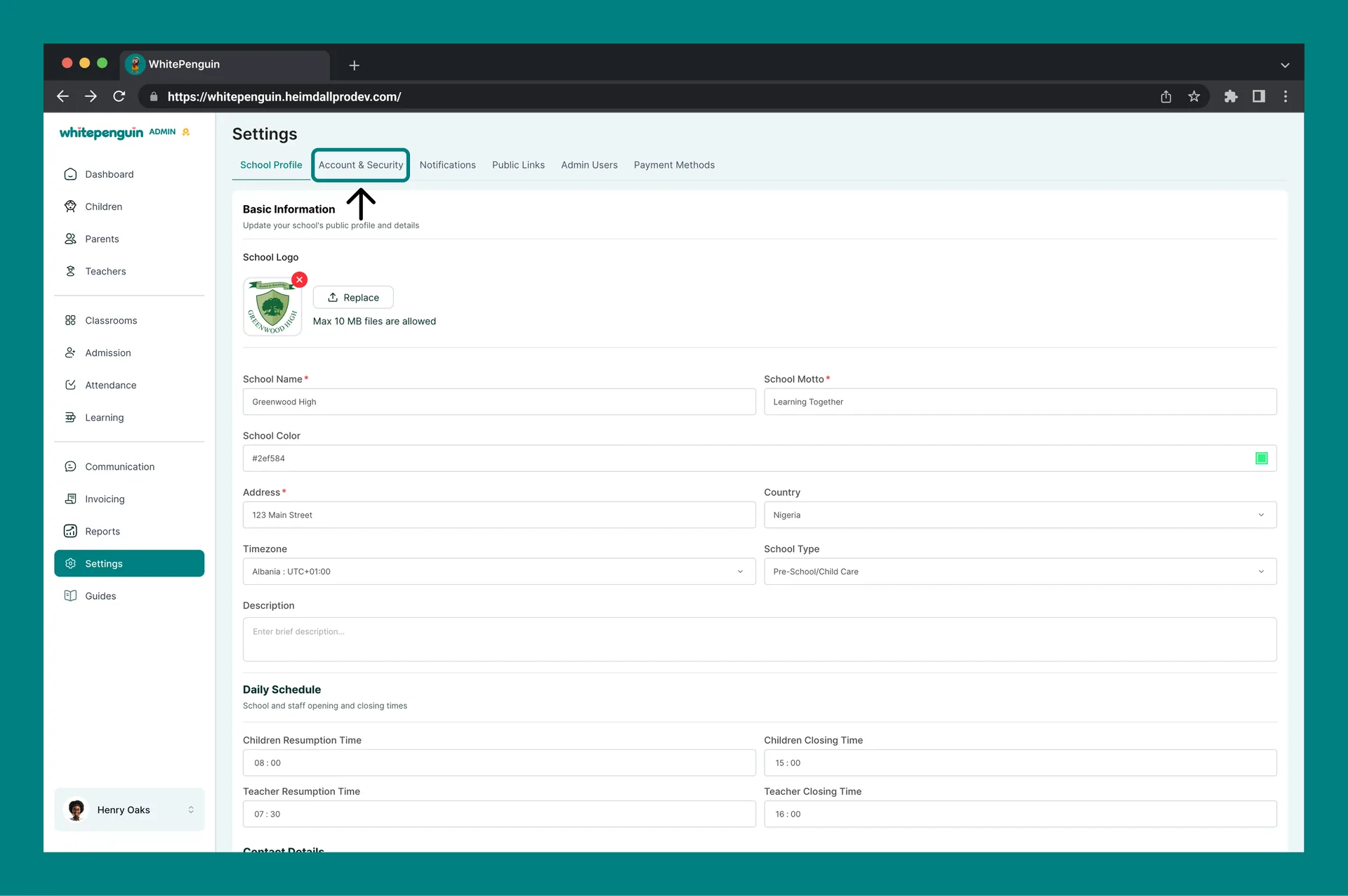
2. Click the **Account & Security** tab at the top of the Settings page.
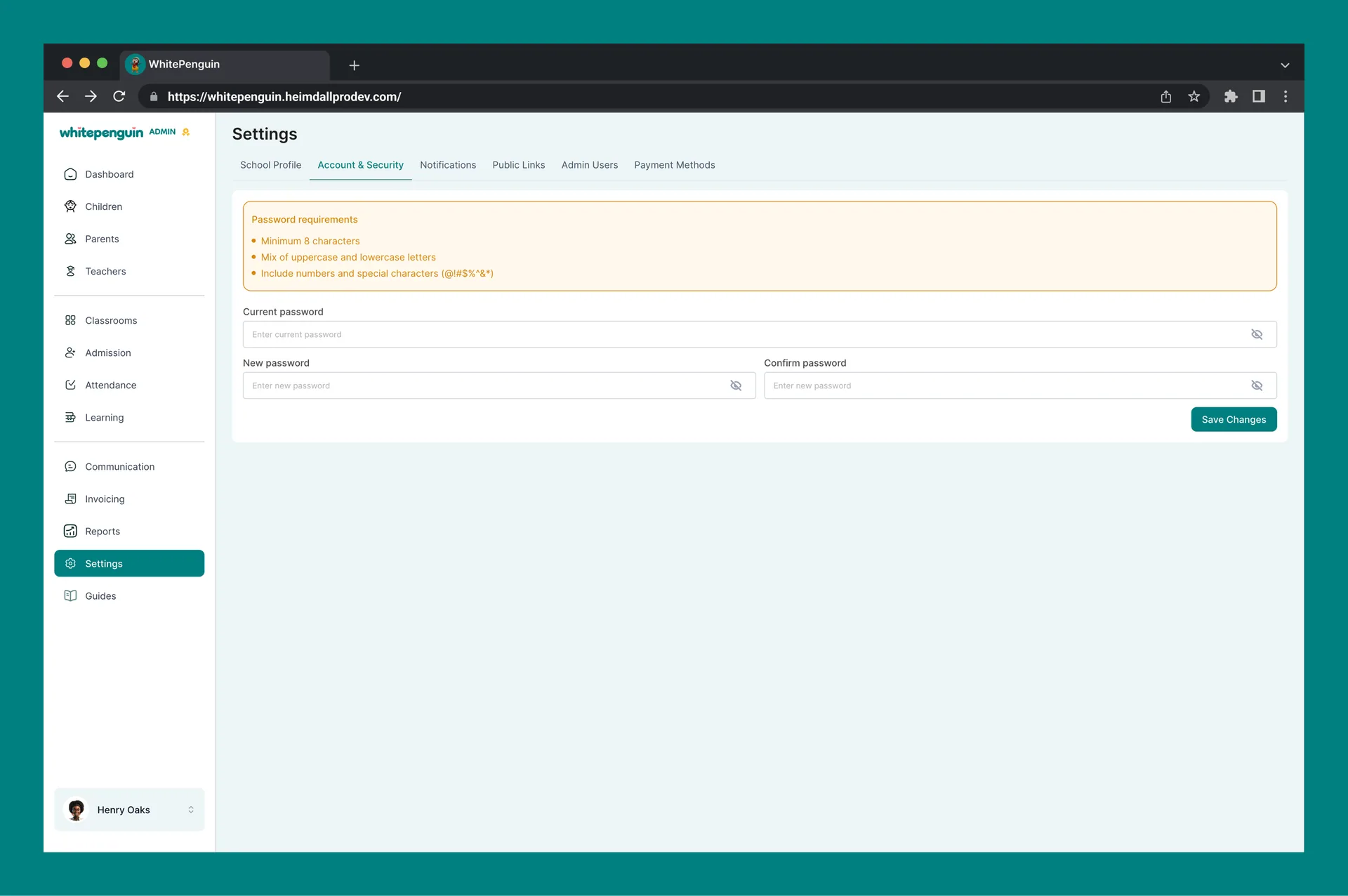
3. The password change form will appear.
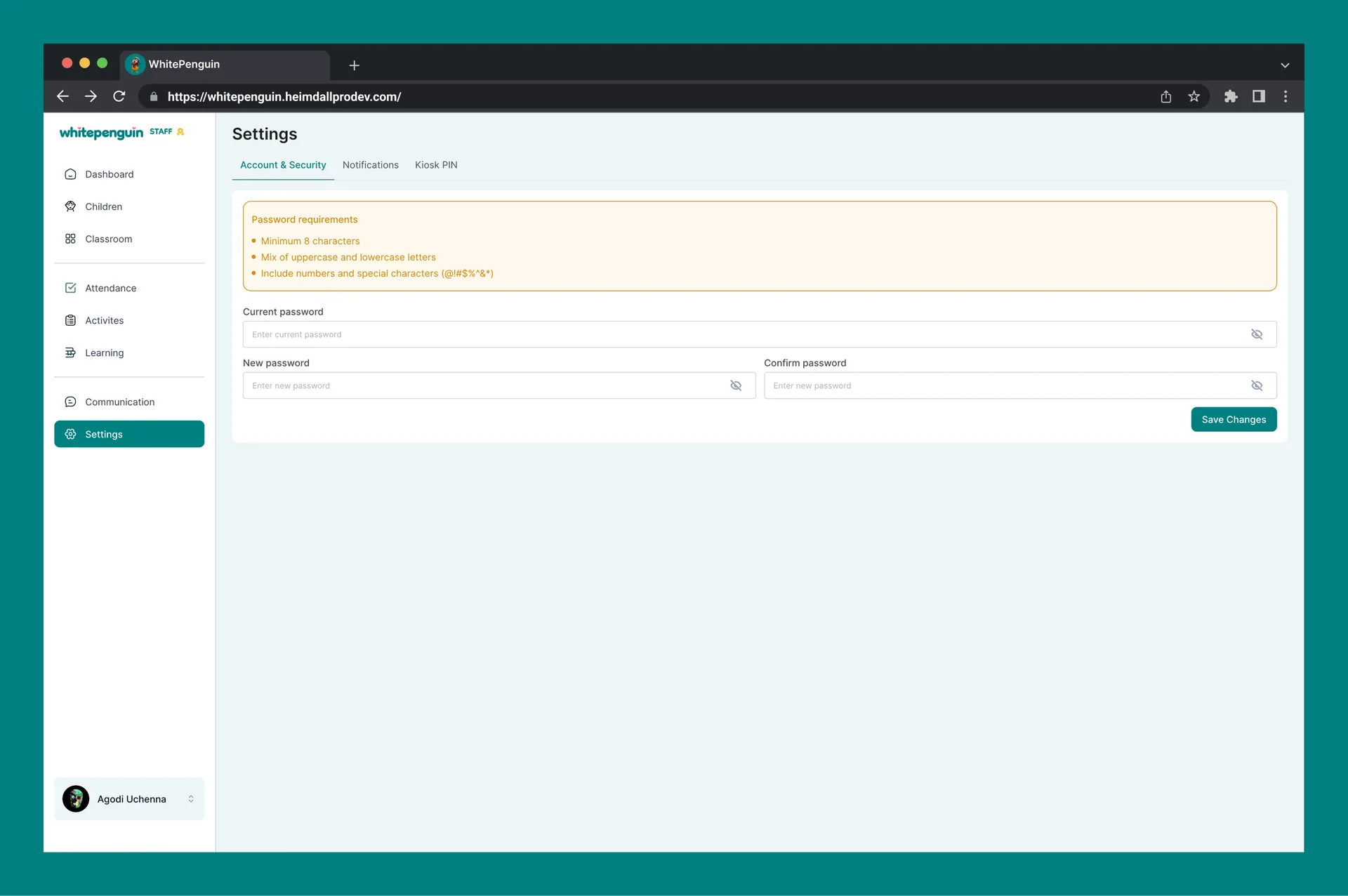
**For Staff and Parents:**
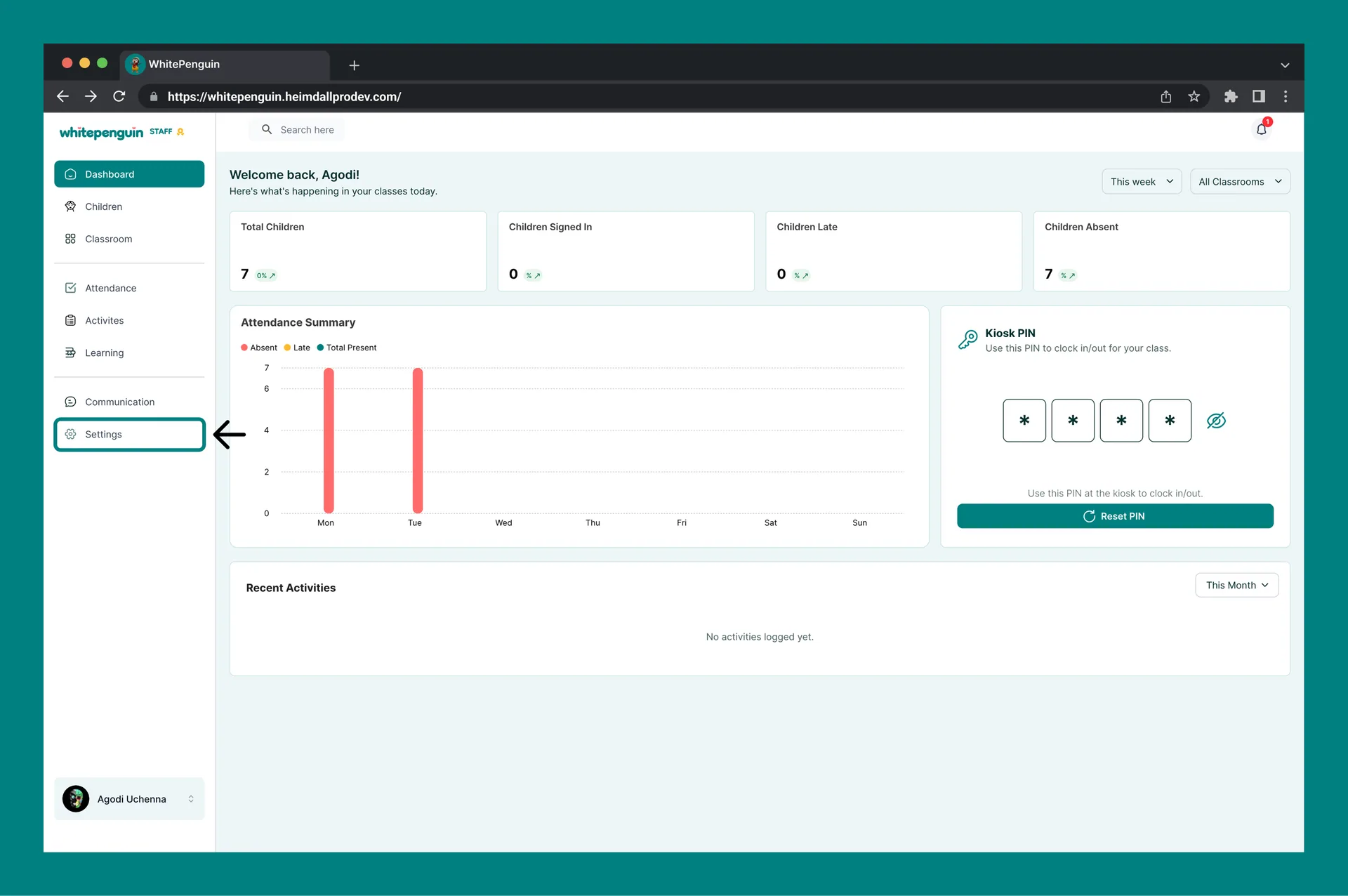
1. Navigate to your **account or profile settings** (accessible from your user menu or profile area).
2. Open the **Account & Security** section.
3. The password change form will appear.
## Changing Your Password [#changing-your-password]
The Account & Security page contains a single password change form with three fields:
| Field | Required | Description |
| -------------------- | ---------- | ---------------------------------------------------------------------------------- |
| **Current Password** | ✅ Required | Enter your existing password to verify your identity before making changes. |
| **New Password** | ✅ Required | Enter the new password you want to use. Must meet the password requirements below. |
| **Confirm Password** | ✅ Required | Re-enter the new password to confirm it matches. Both fields must be identical. |
Once all fields are filled, click **Save Changes** to update your password.
## Password Requirements [#password-requirements]
Your new password must meet all of the following requirements:
* Minimum **8 characters**
* A **mix of uppercase and lowercase letters**
* Must include **numbers and special characters** (e.g., `@`, `!`, `#`, `$`, `%`, `^`, `&`, `*`, `+`)
Passwords that do not meet these requirements cannot be saved. The system will show an inline error if any requirement is not met.
## Tips [#tips]
* **Use a strong, unique password.** Avoid using the same password across multiple platforms. A combination of random words, numbers, and symbols makes the strongest passwords.
* **Don't share your password.** Each user — admin, staff, or parent — should have their own login credentials. Never share your password with others.
* **Change your password regularly.** It's good practice to update your password every few months, especially for admin accounts that have access to sensitive school data.
* **Use the eye icon to verify your input.** All three password fields have a **show/hide toggle (👁️)** so you can check what you've typed before saving.
* **Forgotten your password?** If you can't remember your current password, use the **Forgot Password** option on the login page to reset it via email — you won't need your current password for that flow.
* **Admins: protect your account.** The admin account has full access to all school data, children profiles, invoices, and settings. Keeping it secured with a strong password is especially important.
## FAQs [#faqs]
All users can change their password — **Admins**, **Staff (Teachers)**, and **Parents**. Each user type accesses it through their own account or settings area.
Yes. You must enter your **current password** in the first field to verify your identity before setting a new one. If you've forgotten your current password, use the **Forgot Password** option on the login page instead.
Your password must meet all three requirements: at least **8 characters**, a **mix of uppercase and lowercase letters**, and at least one **number or special character** (@!#$%^&\*+). Check that your new password meets all of these before trying again.
The system will show an error if the two fields don't match. Make sure both the **New Password** and **Confirm Password** fields contain exactly the same value before clicking Save Changes.
No. The Account & Security page requires you to know your current password. If you've forgotten it, go to the **login page** and click **Forgot Password** to receive a reset link by email.
No. You must click the **Save Changes** button to apply your new password. The change is not saved until you explicitly submit the form.